
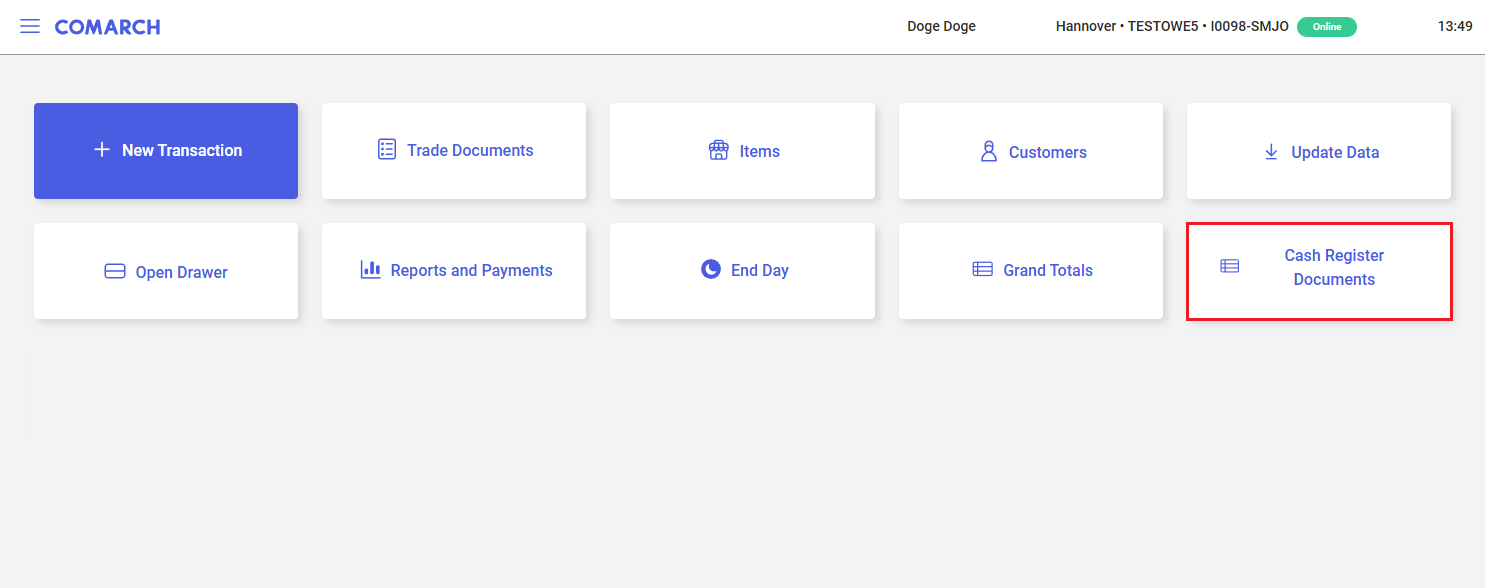
In order to open the list of deposit (CD) and withdrawal (CW) documents, select the [Cash Register Documents] tile in the main panel of the application.
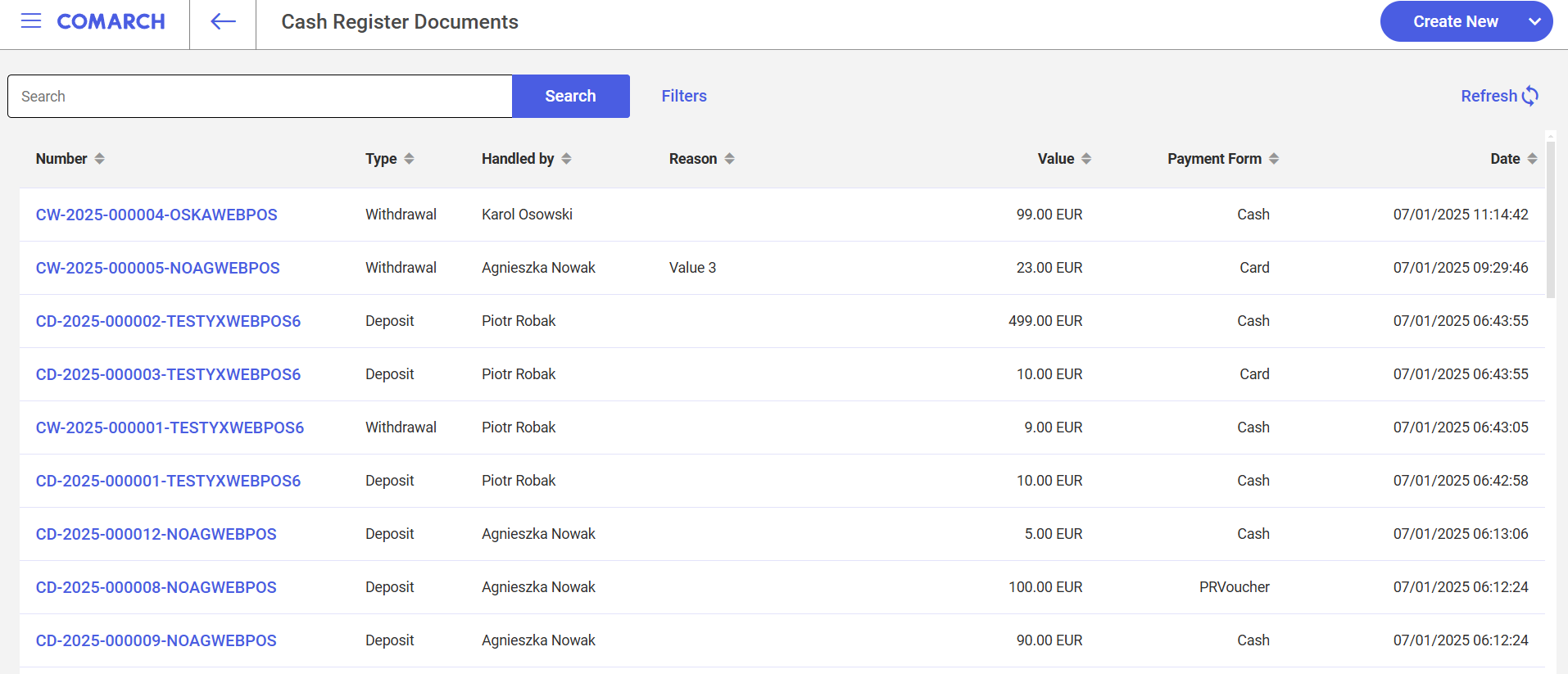
The list is composed of the following columns:
- Number
- Type
- Deposit
- Withdrawal
- Handled by
- Reason
- Value
- Payment Form
- Date
The upper part of the window contains the text filter field that allows you to browse the list of CD/CW documents .
You can also narrow the search results by using the drop-down filters:
- Date From – Date To
- Time From – Time To
- Currency
- Value From – Value To
- Payment Form
- Handled by
- Type
- Reason
The list of CD/CW documents contains the following buttons:
- [Refresh] – it refreshes the list of CD/CW documents
- [Create New] – it adds a new CD/CW document
 button in the top left corner – closes the list of CD/CW documents and returns to the main panel
Adding a new CD/CW document
Selecting the [Create New] button in the list of CD/CW documents expands a list that allows you to select the type of document to create.
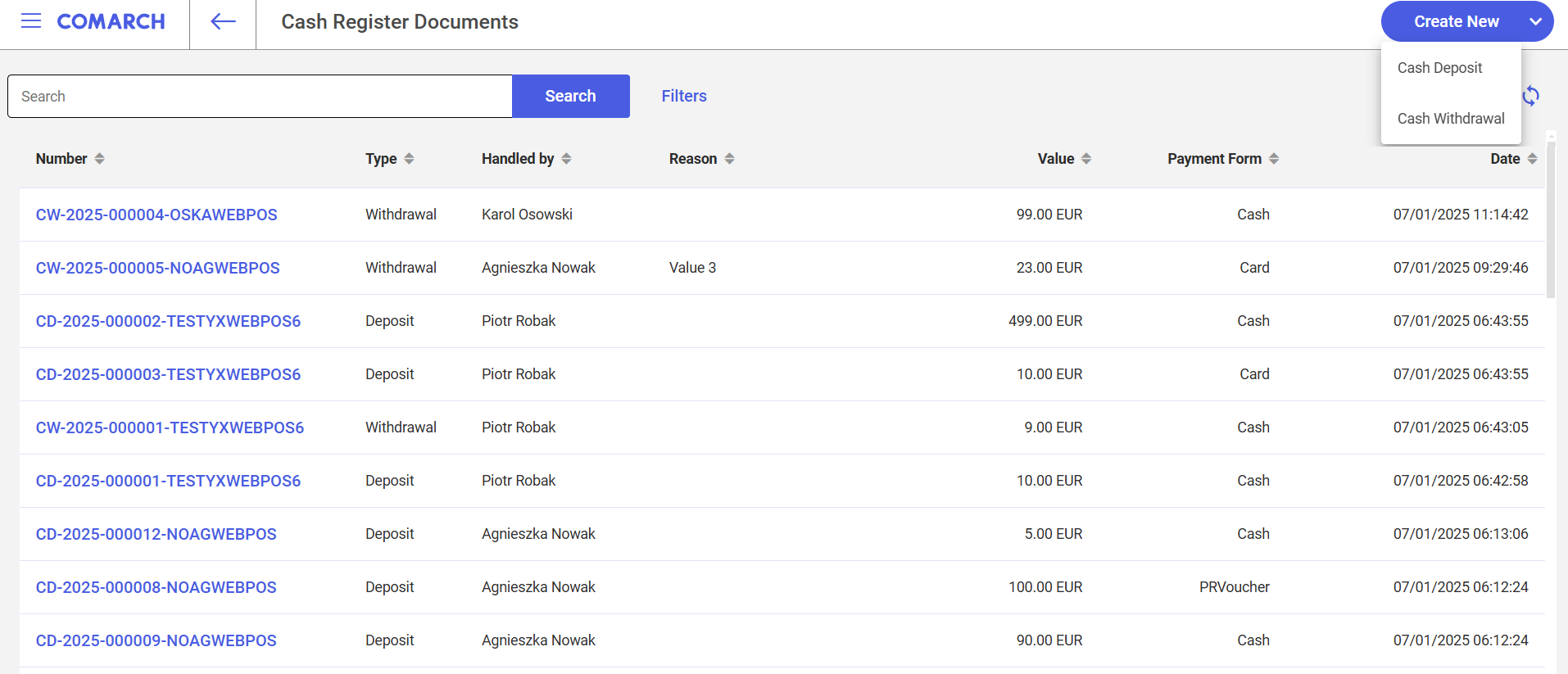
After selecting the type of document, the view for creating a new document opens, customized to the selected document type.
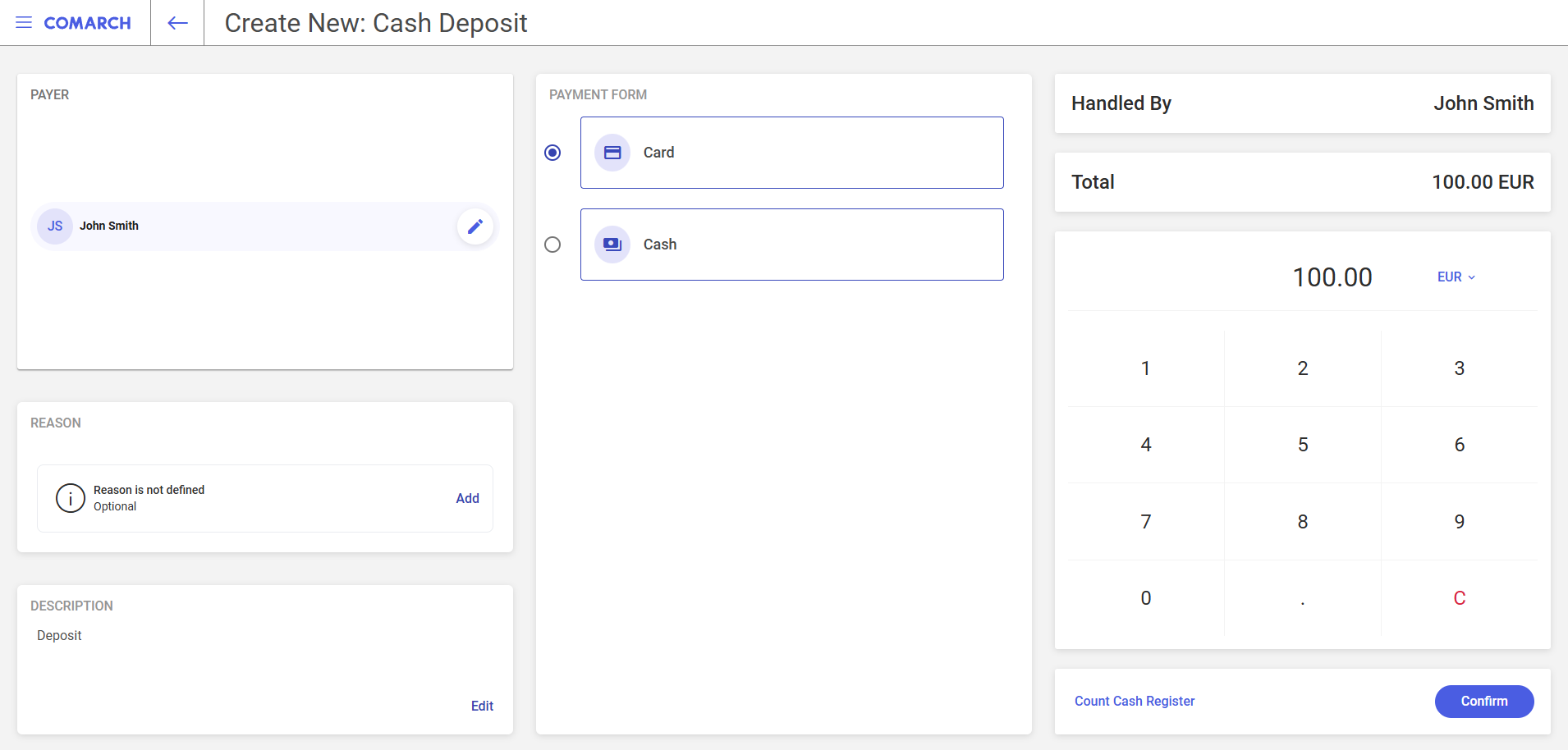
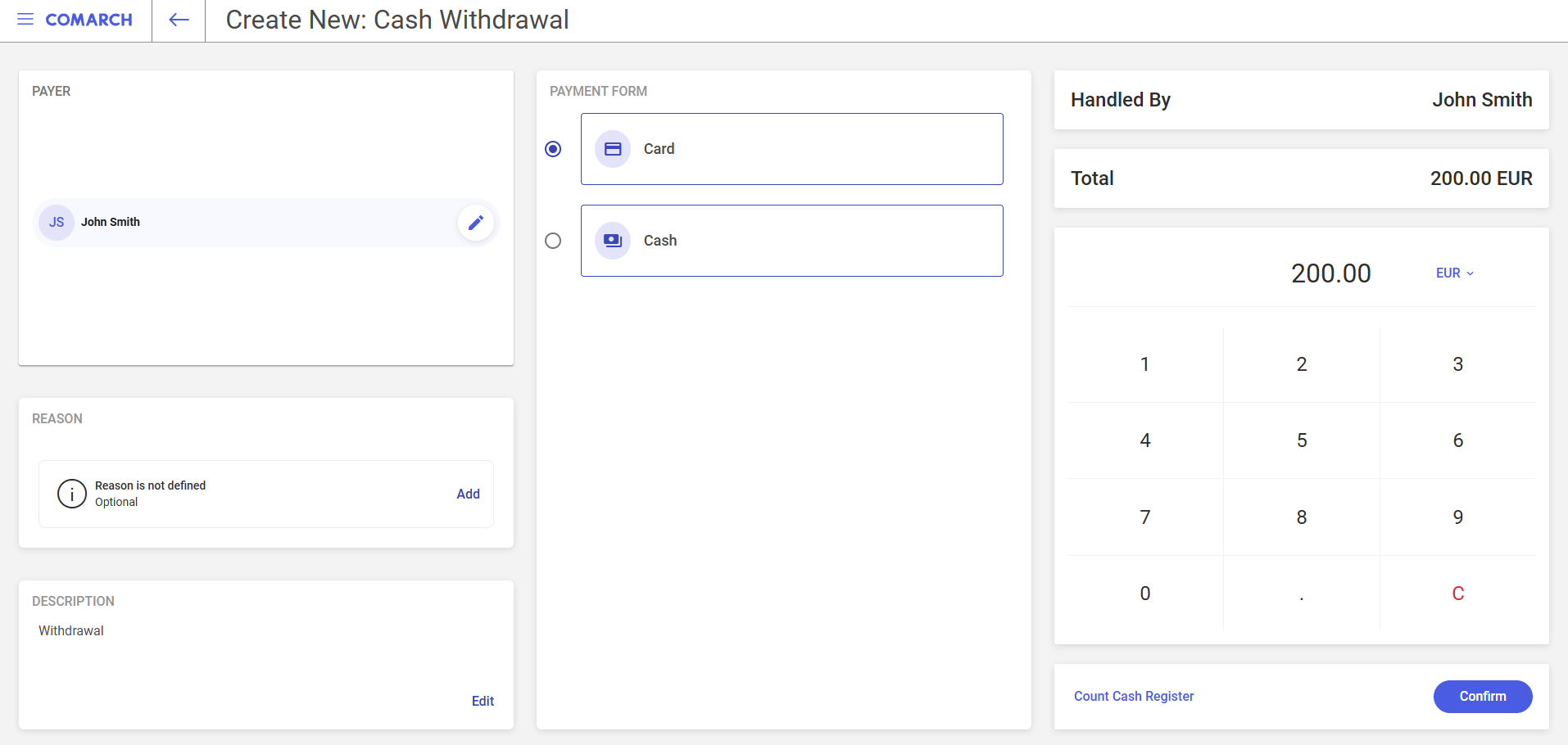
The new CD/CW document creation view is divided into several sections:
- Payer – it allows you to select a person or entity making the payment (in the case of CD) or receiving the payment (in the case of CW)
- Reason – in this field, you can enter a short reason for the payment or its title
- Description – it is an extended text field that allows you to enter additional details related to the operation
- Payment Form – it allows you to select a payment form
- Handled By – it allows selecting a user or employee responsible for the handling of a given transaction
- Total – in this field, you can find the calculated transaction amount. If you use the [Count Cash Register] function, this field can be automatically filled in based on the total calculated in the Count Cash Register
- Numeric keypad – it allows you to manually enter values
- Buttons:
- [Count Cash Register] – it opens the Count Cash Register window
- [Confirm] – it confirms the document
Count Cash Register window
The Count Cash Register window opens after you select the [Count Cash Register] button in the new CD/CW document creation view. In the window, you can count and verify the amount of cash in the cash register. This feature allows you to settle the actual cash register balance before confirming a document.
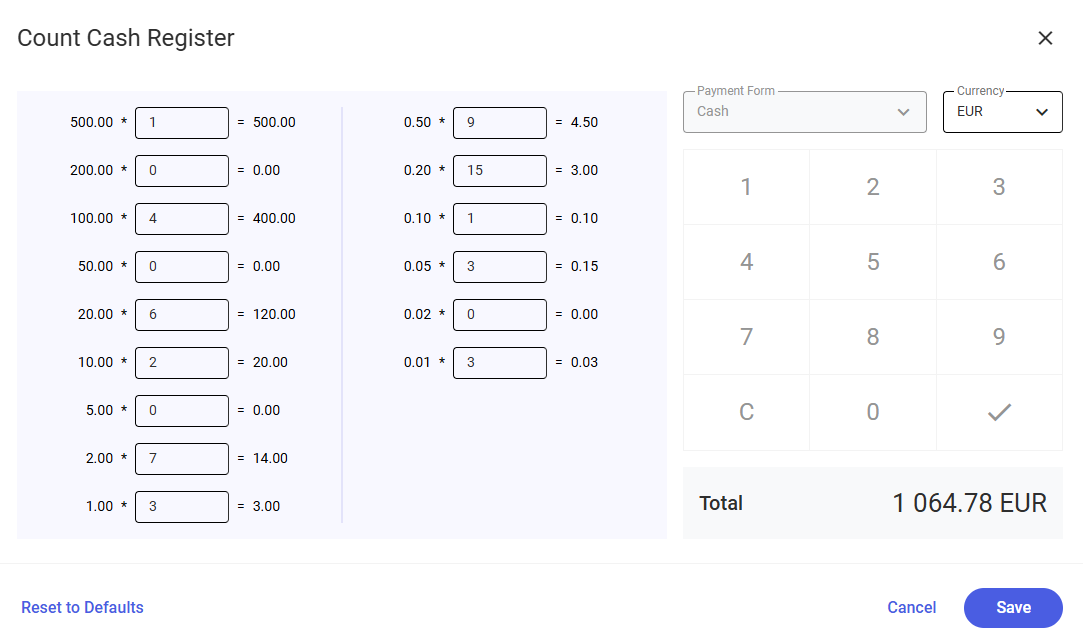
When counting the cash register balance in the Count Cash Register window, you can enter the number of individual banknotes and coins stored in the drawer. The application automatically calculates the value for each denomination (number × face value) and adds up all items, presenting the total cash in the drawer.
The window also contains the following buttons:
- [Reset to Defaults] – it restores default values in all the window’s fields, removing the previously entered data
- [Cancel] – it closes the Count Cash Register window without saving changes and without changing the value in the Total field
- [Save] – it transfers the calculated total from the Count Cash Register window to the Total field in the CD/CW document