
Introduction
General information
Comarch e-Invoice Converter is a tool for sending electronic invoices via standard data exchange formats. Currently, the following e-invoice formats are supported:
- ZUGFeRD formats of the German Forum for Electronic Invoicing (FeRD) (more information on the format can be found at ferd-net.de)
- ZUGFeRD 1.0
- ZUGFeRD 2.1 (Factur-x / EN16931)
- FatturaPA formats for e-invoicing in Italy (more information on the formats can be found at https://www.fatturapa.gov.it/it/index.html)
- FatturaPA 1.2
- FatturaPA 1.3
- Invoice formats:
- XRechnung 1.2.2 (Standard)
- XRechnung 2.0.0 (Standard)
- Subsequent versions of the XRechnung invoice according to the Validity period section at https://xeinkauf.de/xrechnung/ (availability in Comarch e-Invoice can be found in the version information)
- KSeF FA(2) format for e-invoices in Poland (more information can be found at https://www.gov.pl/web/kas/krajowy-system-e-faktur) KSeF also requires the appropriate version of the CEE add-on Comarch ERP Enterprise for Poland (sem.ext.app.Erp4pl) (details can be found in the version information).
- Other e-invoice formats for purchase invoices can be found in the Support for additional formats for purchase invoices section.
The exchange of e-invoices in the ZUGFeRD format takes place via documents in the PDF/A-3 format, i.e., via a PDF/A document representing the invoice (i.e., the invoice image) and an embedded XML file with associated invoice data in accordance with the normalized ZUGFeRD data model.
Comarch e-Invoice works in conjunction with the Comarch e-Invoice converter (previously called the central tool) and the Comarch ERP Enterprise e-Invoice APP, which can be accessed via Comarch ERP Enterprise. The Comarch e-Invoice interface is used for sending sales invoices and processing purchase invoices. ZUGFeRD XML files and PDF/A-3 documents are created and sent as e-invoices via the Comarch e-Invoice converter. Electronic purchase invoices are identified from defined email accounts and made available in the interface for further processing in Comarch ERP Enterprise.
In the case of other formats, only an XML file with e-invoice data is created. In addition to being sent by email, the e-invoice file can also be transferred to a Windows directory for further processing in other systems.
This article describes the use and functions of the Comarch e-Invoice converter in connection with Comarch ERP Enterprise.
Information on the handling of Comarch e-Invoice in Comarch ERP Enterprise can be found in the Comarch ERP Enterprise help articles.
Further documents have been included in the Documents subfolder in the installation directory (more information can be found in the Installation of objects chapter). In particular, this is help in the form of quick_guides or quick_guide documents for new format versions, e.g., with instructions regarding the introduction of a new e-invoice format. Information on the interpretation of error messages can be found in the chapter Explanation of the error message during XRechnung and ZUGFeRD 2.1 validation.
Explanations regarding e-Invoice forms
With regard to the supported e-invoice formats, the following issues should be noted:
- ZUGFeRD 2.1 is a hybrid electronic invoice format that meets the requirements of the European standard EN 16931-1 (identical in terms of content and structure to the French hybrid format Factur-X in version 1.0.05).
- XRechnung (versions 1.2.2, 2.0.0 and subsequent) is compatible with ZUGFeRD 2.1, i.e., identical in terms of content and structure. However, there are additional mandatory details, such as a routing identifier or contact details. More information on this topic can be found in the Specific features of XRechnung chapter.
- FatturaPA 1.2 and FatturaPA 1.3 are identical in terms of structure, although the correct values for some attributes have changed. Currently, FatturaPA 1.3 should be used, as it has been mandatory since January 1, 2021, and new FatturaPA functions are supported only in this format.
- FA(2) is a pure data format. In the case of KSeF invoices, there is also a connection to the National e-Invoice System, to which e-invoices are sent and from which the KSeF document number and the Official Receipt Acknowledgment (UPO) are downloaded. The KSeF document number and the corresponding e-invoice status are transferred to Comarch ERP Enterprise.
Structure of the Comarch e-Invoice Converter tool
The Comarch e-Invoice converter consists of several components:
- e-Invoice Server:
- e-Invoice Control Cockpit
- e-Invoice server maintenance
- Code list maintenance
- Value conversion maintenance
- Deploying updates
- eInvoice Updater
- Billing server (not part of the installation, but a separate server at Comarch)
The e-Invoice server (referred to as the server for short) identifies e-invoices made available in the interface at regular intervals for customer invoices. These e-invoices are processed (converted) and then sent. Simultaneously, email accounts designated to receive e-invoices are scanned for new messages containing e-invoices. For each of these email accounts, all messages are processed or moved to the appropriate inbox folder, depending on whether the email message contains an invoice as an attachment. In the case of supplier invoices, data from XML to e-invoice and PDF in ZUGFeRD are transferred to the interface.
The server is usually run as a service.
The control cockpit can be used to perform all maintenance functions, interface monitoring, and Comarch e-Invoice converter updates through software updates.
The use of Comarch e-Invoice is billed on a per-transaction basis. For this purpose, the processed e-invoice counter is increased via the billing server using a web service before an email with the e-invoice is sent or before the e-invoice is transferred to the interface (inbox).
Customer invoices that are invalid, i.e., could not be correctly created, and supplier invoices that were not transferred to the interface because they are invalid, not supported, or were transferred before e-invoicing was activated, are not billed.
Control cockpit
The most important element of the Comarch e-Invoice converter is the server. It is through the control cockpit that all necessary settings and definitions are made.
Due to the fundamental importance of these settings, the description of the application’s operation begins with a description of the control cockpit. Information on starting and configuring the server can be found in the Ensuring server availability chapter.
To start the control cockpit, run the file cockpit_start.bat.
Interface overview and server status
The most frequently used function of the control cockpit is monitoring the server and the interface. This function is available only when the server is running.
The server status can be checked in the status field located below the server address.
On the Customer invoices and Supplier invoices tabs, you can view the status of associated processing and the interface content along with the processing statuses of electronic invoices (e-invoices).
Selecting the [Refresh] button updates the data visible in the interface. Selection fields allow you to narrow down the data range. Text search fields support general search (the * character is added automatically). Multiple search conditions are combined using AND logic.
For the e-invoices displayed in the table, you can use the screen preview function to open associated documents, if any exist. In case of problems with opening documents, please refer to the information in the Opening a file via pop-up in the control cockpit fails chapter.
The [Pause processing] and [Start] buttons, located to the right of the [Refresh] button, allow you to pause or start the inbound or outbound process, depending on its current status.
The status of a given inbound/outbound processing is displayed below the interface data table. When processing is active, a list of active tasks at the time of the last refresh is presented. Stopping the processing means that no new e-invoices will be processed. Currently active tasks will not be interrupted — they will finish normally.
On the KSeF system tab, you can check the status and time of the last action performed by the corresponding processing. It refers to sending and receiving invoice confirmations and downloading supplier invoices from the connected KSeF system.
The Messages tab contains a list of the latest messages from the server. All messages can be found in the server log file.
Maintenance of control data for the Comarch e-Invoice Converter
The application’s operation is controlled by various settings. Server behavior is regulated by server settings described in the Server settings chapter.
Additional definitions are required for the correct processing of e-invoice content. In order for specific specifications originating from the Comarch ERP Enterprise system to be interpreted as correct values in the ZUGFeRD standard, appropriate value conversions must be applied.
Appropriate programs used to manage these definitions can be launched via the control cockpit from the menu level on the Tools tab.
Transfer of definition data for new formats (once!)
Each e-invoice format, as well as each version of a given format, has its own definitions regarding value conversion. To avoid the need to manually re-enter all definitions, the action [Transfer of definition data for new formats (once!)] is available in the menu under the [Tools] button. It allows you to copy already defined data from an existing format to its corresponding new format or a new version of that format.
After performing the transfer, the data in the new format must be verified and, if necessary, also adjusted and supplemented. Additional information regarding the introduction of new formats can be found in the General chapter.
Stopping the server
To make it possible to perform an update, the server must be stopped beforehand. For this purpose, the action [Stop e-invoice server] is available in the menu under the [Server] button. This function stops the server in a controlled manner. Similar to stopping processing, the server is not turned off immediately. First, the launching of new e-invoice processing processes is stopped, and ongoing processing is brought to completion.
Only when all active tasks have been completed is the server shut down.
Update
When a new version of the Comarch e-Invoice converter is available, administrators specified in the settings receive an appropriate notification. The update does not take place automatically — it must be performed manually using the [E-invoice update (in full)] action, available in the menu under the [Updates] button.
Before performing the update, a version check is carried out again; therefore, this function can also be used to check for the availability of new versions.
Automatic updates are not possible because the server must be turned off beforehand. Furthermore, it may be necessary to have an appropriately current version of the e-Invoice add-on for the Comarch ERP Enterprise system and the e-invoice interface.
The update process runs in the language set as the default for the operating system.
Settlements
The [Settlement] button on the menu bar allows you to check the settlement status.
For e-invoice processing to proceed fully correctly, an available connection to the billing server is required. If the billing server is unavailable, the application places it in a temporary waiting state.
An automatic availability check of the billing server is performed approximately every 30 minutes. If the check is successful, e-invoice processing is resumed.
The [Validation of settlement server] action, available under the [Settlement] button, allows you to check if the billing server is available. The check includes: physical server availability (e.g., whether it is blocked by a firewall), correctness of license setting definitions (more information on this topic can be found in the License chapter), and the correctness of the user configuration and password for the connection to the billing server (more information can be found in the Communication chapter).
User identification in the billing server is based on license settings and login data. This function is particularly useful after installing the Comarch e-Invoice converter and after successful parameterization of the server settings, when no e-invoices are yet available for processing.
The [Current settlement status] action, available under the [Settlement] button, allows for the display of the current settlement status, i.e., the number of e-invoices currently being processed.
Maintenance of control cockpit data
The control cockpit itself has its own control data. The associated program for managing these settings is launched in the control cockpit via the [Cockpit settings] action, located under the [Cockpit] button.
Server settings
Server functionality and its connection to the e-invoice interface, mail server, and email accounts for supplier invoices are maintained through settings. Invocation takes place from the control cockpit level via the main menu, [Tools] button, and then on thematically divided tabs.
The operation of individual settings is described in subsequent chapters.
If a correct value has been marked as default, it means that it will be used by the server if no other value is specified in the settings.
true/false declarations are usually managed by checkboxes, where a checked box means the value true.
If all fields have not been correctly completed, error messages may appear when saving using the [OK] button. In such a case, the entered settings should be saved using the [Save without validation] button.
Basis tab
The Basis tab contains the following data:
- Comarch application used — the Comarch e-Invoice converter uses connections to the Comarch ERP Enterprise e-invoice interface and takes into account special processing methods for this system
- Test system — a false value indicates the use of the converter in a real system. A supplier invoice with the test indicator true will not be processed, only moved to the test folder of the email account. A true value indicates that all supplier invoices are accepted regardless of the test indicator. Along with this setting, it is recommended to set the test mode field to true for customer invoices.
- Language for server — the language in which the server operates. This is the language in which messages in the cockpit are displayed and error messages and emails are sent. If no language is specified, the language used is in accordance with the system settings, i.e., according to the regional format.
Presettings tab
- Date format — date values in the interface must have the following format, if no other format is assigned to the date value in the interface:
- 102 — YYYYMMDD (default value)
- 610 — YYYYMM
- 616 — YYYYWW
- Format for partner ID — format of the global partner identifier in the ERP system. It is usually the Global Location Number (GLN, formerly ILN), which has the value 0088 in the code list (default). Additional values can be found in the code lists under the code list designation GLOBAL_ID_FMT (more information can be found in the Code lists chapter).
- Format for item ID — format of the global item identifier in the ERP system. It is usually the Global Trade Item Number (GTIN), which has the value 0160 in the code list (default). Additional values can be found in the code lists (more information can be found in the Code lists chapter) under the code list designation GLOBAL_ID_FMT.
- ZUGFeRD document type — values 84 and 389 are provided in accordance with the ZUGFeRD standard, but are not supported by the Comarch ERP Enterprise system.
- 380 — commercial invoice (default value)
- 84 — loaded value
- 389 — self-issued invoice
- Target format of timestamp from supplier invoice — default value for converting timestamp information for supplier invoices
- Always use ZUGFeRD 2.1 Factur-X instead of ZUGFeRD 1.0 — all customer invoices with the ZUGFeRD 1.0 format specification will be created as e-invoices in the ZUGFeRD 2.1 format in accordance with the settings for the new format. Activation of this parameter has the same effect as manually changing all ZUGFeRD 1.0 specifications (in the Comarch ERP Enterprise system defined simply as ZUGFeRD) to ZUGFeRD 2.1 in the customer view. Therefore, document templates or export filters should be adjusted accordingly.
FatturaPA presettings:
- Minimum amount “Bollo” — the sum of invoice items with a 0% tax rate is determined. If the absolute amount of the sum exceeds the Bollo amount, in this case, the stamp duty amount is placed on the FatturaPA invoice.
- Payment amount “Bollo” — the amount of the revenue stamp
- Always use FatturaPA 1.3 instead of FatturaPA 1.2 — all customer invoices with the FatturaPA 1.2 format specification will be created as e-invoices in the FatturaPA 1.3 format in accordance with the settings for the new format. Adjusting document templates or export filters is not necessary.
XRechnung presettings:
- Set default settings for empty fields — default values in the fields in the ZUGFeRD default settings section must also be set for XRechnung
- Format version for XRechnung — in Comarch ERP Enterprise, the value XRECHNUNG was selected as the invoice format. The valid version for this format is defined in this field.
Interface tab
Interface specifications define access and connection to the e-invoice interface. They allow for defining the details of the converter’s connection with the Comarch ERP Enterprise system.
- CEE System — the application server address of Comarch ERP Enterprise must be specified without the initial https prefix and without the trailing /. Separate application servers can be used by specifying the port. For example, kundendv.kunde.de or kundendv.kunde.de:7777.
- Database — the database used, for example KUNDENDV02
- (Active OLTP) client — the client identifier, i.e., the main directory of all organizations, e.g., main organization 00000
- JKS certificate — path to the JKS certificate. More information on this topic can be found in the Creating a JKS certificate chapter.
- JKS password — password for the JKS certificate.
- Supplier invoice directory (kstore) — the main interface directory in kstore, where attachments and interface files for supplier invoices are placed. Even if you do not process supplier invoices, an existing kstore folder must be specified here, as the connection to kstore is checked using this specification. For example, Documents/eInvoices/Incoming. Along with the specified Comarch ERP Enterprise system and database, information is saved at the address https://kundendv.kunde.de:7777/kstore/KUNDENDV02/eInvoices/Incoming.
Communication tab
The Comarch e-Invoice converter requires a connection to two Comarch servers, i.e., the billing server for processed e-invoices and the software update server.
It is important that access to these servers is possible, i.e., not blocked by network firewalls or other mechanisms. A description of the system requirements can be found in the System requirements chapter.
Access to the billing server is via an HTTPS connection, which is additionally secured by logging in using a username and password. The username and the corresponding password will be provided with the license. More information on this topic can be found in the License chapter.
If proxy servers are used, the Use proxy server parameter must be checked. Only then is the corresponding proxy server settings button active and entries can be made.
The Waiting time in seconds parameter is taken into account with both the Use proxy server parameter activated and deactivated.
Formats tab
Additional data can be added to the supported e-invoice formats by selecting a format and then the [Edit] button to start editing. After making changes, select the [Set data for selected format] button to temporarily apply the information for the format on the list. However, the data will only be finally applied after saving the settings by selecting the [OK] button.
Details of the selected format:
- Do not use for customer invoice — if the parameter is not activated, the e-invoice format is supported for customer invoices. If the parameter is active, the e-invoice format is disabled for customer invoices. This specification does not affect the corresponding selection in the Customer view for the Comarch ERP Enterprise partner.
- Do not use for supplier invoice — if the parameter is not activated, the e-invoice format is supported for supplier invoices. If the parameter is active, the e-invoice format is disabled for supplier invoices.
- Type of output file(s) — this specification sets the default type of e-invoice file to be created for receivable invoices. At the Comarch ERP Enterprise partner, values deviating from the defaults can be defined for customers. The following values are allowed:
- PDF with embedded invoice data (for ZUGFeRD: PDF/A-3)
- Invoice data
- XML file
- Type of final processing — this specification sets the default type of final result for the created e-invoice file. To be able to select a value, it must be enabled by other format properties or be fundamentally possible (FatturaPA does not support email because the transmission must take place via SDI). At the Comarch ERP Enterprise partner, values deviating from the defaults can be defined for customers; in such a case, the selected type must be activated. The following values are allowed:
- Storage in Windows directory
- No mail, no storage in Windows directory (the e-invoice file is located only in the kstore folder according to the interface / document template)
Sending e-mail section:
- Sending e-mail with invoice allowed — activating the parameter allows for email dispatch. For the setting to be effective, the Mail value must be allowed within the final processing type.
- File name for generated invoice — the e-invoice file name can be specified as follows:
- By default, i.e., without specification, einvoice is added to the invoice image file name before the .pdf extension. This is recommended when using Comarch ERP Enterprise.
- Supplementary value, i.e., the invoice image file name is extended by a supplementary value before the .pdf extension.
- In DSS, a constant file name for the e-invoice should be specified, i.e., for the PDF/A-3 file created from the PDF and XML ZUGFeRD file (e.g., eInvoice.pdf).
- In the case of the FatturaPA format, the file name is set automatically by the Comarch ERP Enterprise system.
Storage in Windows directory section:
- Copying e-invoice to target folder allowed — activating the parameter allows saving created e-invoices to a Windows folder. For the specification to work, the Storage in Windows directory option must be available in the final processing type.
- Target folder for e-invoice copy — the folder where the created e-invoice file will be saved or in which a subfolder with the created e-invoice file will be created.
- Target subfolder according to type — since e-invoices generated based on supplier invoices are processed in the Comarch e-Invoice converter in the same way as customer invoices, it is possible to divide these invoices into different Windows file folders below the target folder for the copy. Two folders can be entered here, separated by commas. First, the folder for customer invoices is specified, followed by the folder for e-invoices generated for supplier invoices. Examples: out,in_gen or in_gen or out or out,. If no specification is provided, as in the last three examples, no folder is inserted.
Additional sending of invoice PDF via email section:
-
Sending of CEE invoice PDF — activation of the parameter means that after successful creation of the e-invoice, the Comarch ERP Enterprise invoice PDF file is additionally sent by email. This option is currently active only for the FatturaPA format. In the case of FatturaPA, the email subject specification is supplemented by the specification.
PDF generation for formats section:
Specific (format-dependent) functionalities section:
- Output credit notes with a positive invoice amount — thanks to the activation of this parameter, corrections of customer invoices are converted to a positive final amount. The parameter can only be used for the FatturaPA format.
- Sort order of document information — thanks to the activation of this parameter, in the details of FatturaPA customer invoice documents (e.g., for purchase orders, waybills), they are sorted according to the selection or left in the order in which they were transferred from Comarch ERP Enterprise.
Output control for e-invoice document section:
- Different target folder — if a kstore folder or a Comarch ERP Enterprise workspace folder is specified here, the created e-invoice files will be placed in the target folder provided here. This folder must already exist. This folder can be supplemented with further folders if a number greater than zero is provided for Include parent folders. More details can be found in the Procedure for a non-standard target folder chapter. Without this specification, the created e-invoice will be placed in the same location as the neutral XML file, as was the case previously.
- Include parent folders (count) — a number greater than zero specifies the maximum number of folders that will be included from the neutral XML file path (backwards from the end) to the target folder for a given invoice. More information can be found in the Procedure for a non-standard target folder chapter.
- Do not customize file name for generated invoice — the file name for the created invoice is generated based on the Comarch ERP Enterprise invoice PDF file name or the neutral XML by adding a supplementary value from the File name for the generated invoice field (specification of value or default value). Without another target folder, this is necessary to avoid using the same names in a folder. If the target folder is different, adding the name is no longer required and can thus be deactivated.
- Do not generate visualization — here you can define whether a visualization should be generated for the created e-invoice
- Do not send zero invoices — zero-amount invoices are invoices whose total amount is 0.00 (i.e. when <grossAmount> in the neutral XML has this value). Thanks to this option, sending these e-invoices by mail and saving/creating an e-invoice copy in the Windows directory (according to the Target folder for e-invoice copy field) is prevented. In such a case, the Comarch ERP Enterprise invoice PDF is also not sent.
- Delete source files after generation — this parameter controls whether, after successful creation of the e-invoice, the neutral XML and the Comarch ERP Enterprise invoice PDF will be deleted. If this parameter is activated, successfully created e-invoices are no longer visible in the control cockpit. However, they are still visible in Comarch ERP Enterprise.
Conversion definitions section:
- Definition for code lists — contains the name of the file with the required code lists for the format. A file with this name must be located in the installation folder.
- Definition for a specific conversion — contains the name of the file with special conversions for the format. A file with this name must be located in the installation folder.
- Remove invalid characters — the parameter specifies whether invalid characters, such as line breaks or special characters, should be removed from the created e-invoice XML file before its validation. Allowed values:
- No removal
- According to character clean-up definitions (ZBD)
- All inadmissible line breaks/tabs according to the XSD definition (XSD)
- According to both procedures (ZBD and XSD)
ZBD applies only to certain elements in the e-invoice XML, while XSD applies to the entire XML. If both methods are used, ZBD is performed first. This is required only for the FatturaPA format, and default settings for ZBD in FatturaPA 1.2 already exist.
Mail server tab
A specific mail server with a defined account is used to send notifications to administrators. If no separate account is defined in the Customer invoices section (more information can be found in the Customer invoices chapter), the mail server/mail account defined here will also be used to send customer invoices.
Only SMTP accounts are supported; therefore, the value smtp should be entered as the mail protocol or, if the communication is encrypted, smtps. Encrypted transfers using STARTTLS can also be used as a transfer mode.
In addition to account details, it is specified here whether communication with the mail server is recorded in the log files. More information on this topic can be found in the Logging communication with the mail server chapter.
For notifications to administrators, provide the sender’s address and one or more recipient addresses (separated by semicolons). Each notification to the administrator starts with the text specified in the subject.
Customer invoices tab
It is possible to define a separate mail server with its own account for customer invoices. If the host specification remains empty, customer invoices will be sent using the settings according to the mail server specifications.
If there is no separate sender in the interface data for customer invoices, customer invoices are sent according to the specification from the Default address as sender field.
Other configuration options:
- Test mode — lack of parameter activation causes customer invoices to be sent as real invoices. If the parameter is activated, a customer invoice will always be created as a test invoice. When a customer invoice is created as a test invoice, a test indicator is set in ZUGFeRD 1.0 XML, and red, diagonal TEST CASE text is added to the first page of the invoice image.
- Customer invoice deactivated — activating the parameter is equivalent to deactivating the customer invoice
- Initial delay (in ms) — when the e-invoice service is restarted, the processing of customer invoices is activated only after this time (in milliseconds) has elapsed. This gives the possibility to stop processing via the control cockpit after starting the server, before the first data from the interface is processed.
- Waiting time between processing cycles (in ms) — when all shared customer invoices in the interface have been processed, the processing is stopped. After a specified time, all newly added shared customer invoices will be processed. This prevents unnecessary constant load on the computer/system. Recommended minimum values (60000 -> 1 minute or 1200000 -> 20 minutes).
- Maximum number for simultaneous processing — regulates the simultaneous processing of customer invoices. The default value is equivalent to serial processing, while the value x>1 should not be too high, depending on the performance and RAM of the computer.
- E-mail addresses for notifications — email addresses for recipients who will be notified in case of problems with a customer invoice (separated by semicolons). In contrast to the analogous specification under the mail server, the addresses of employees dealing with customer invoices should be provided here. If no emails are to be sent, the special value *noMail should be provided.
- Default address as sender — the sender for customer invoices if there is no specification on this subject in the interface. The email account set for customer invoices must allow sending emails to these addresses for all details provided via this address or the sender’s address from the interface. If this is not guaranteed, i.e., if the email account does not allow different senders, the Always use default sender address parameter should be activated.
- Always use default sender address — if the parameter is active, the email address from the Default address as sender field is always used as the message sender
- Request acknowledgement of receipt — the parameter sets the property for requesting a delivery/transfer confirmation for emails that send a customer invoice. Whether a response will be sent depends on the recipient or their mail server settings. Another condition is that your own mail server supports DSN (Delivery status notifications).
- Request read receipt — the parameter sets the read confirmation property for emails in which customer invoices are sent. Whether a response will be sent depends on the recipient or their mail server settings.
- Work folder for customer invoices — this is the working folder for storing created XML files of customer invoices in case their validation fails
- Directory for error message output — default folder for error messages
Furthermore, it is possible to create a mail account for customer invoices, through which completed e-invoices are to be sent. If a host is provided, this account will be used. If the mail account is not configured in a way that allows sending mail from different senders via this account, the Default address as sender must be provided, and the Always use default address as sender parameter must be activated.
If a separate mail account for customer invoices is not defined, the mail account from the mail server settings will be used.
Supplier invoices tab
For the supplier invoices handled, there are multiple email accounts that receive supplier invoices. These email accounts are defined on the Supplier invoices tab.
- Supplier invoice deactivated — if the parameter is activated, processing of supplier invoices is not possible.
- Initial delay (in ms) — when the e-invoice service is restarted, the processing of supplier invoices will be activated only after this time has elapsed. This allows for the possibility of stopping processing via the control cockpit after the server has started, before the first data from the interface is processed.
- Waiting time between processing cycles (in ms) — when all emails from the inbox folders have been processed on the recipient email accounts, processing is suspended. After a specified time (in milliseconds), re-processing of emails in the inbox folders begins. This prevents unnecessary constant load on the computer/system.
- Maximum number for simultaneous processing of e-mail accounts — the setting controls the simultaneous processing of mail accounts. The default value means serial processing. Values x>1 should not be too high, depending on the computer’s performance. Within the respective email account, processing can be parallelized again.
- Maximum number for simultaneous processing of directories — the setting controls the simultaneous processing of directories. The default value means serial processing. Values x>1 should not be too high, depending on the computer’s performance. Within the respective directory definition, processing can be parallelized again.
- Assignment of organizations to GLNs — assigning the responsible organization in the interface based on the recipient’s GLN. (The term GLN is used because it is the most common number range for partner identifiers). Assignments are specified as character pairs -> separated by commas in the form GLN number -> Organization.
Supplier invoices for the buyer with GLN 1922209920000 are assigned to organization 90200 and processed there in Comarch ERP Enterprise.
An attempt is made to first determine the GLN of the invoice recipient, and if this is not available, the buyer’s GLN is used. Simultaneously, an attempt is made to find the invoice recipient or buyer through partner search. If assignment via GLN/partner search is not possible, assignment takes place via the email account of the supplier invoice. More information can be found in the Supplier invoice mail accounts chapter.
- Do not import additional attachments into interface — activating the parameter prevents the processing of additional attachments. Only the e-invoice is transferred to the interface. Lack of parameter activation allows the transfer of all attachments to the interface. This parameter should be activated because Comarch ERP Enterprise currently does not support the transfer of additional attachments.
- Allow read receipt — the parameter allows for automatic sending of emails to the e-invoice sender if the sender requested such confirmation. Automatic read confirmation occurs only for emails that have been transferred to the interface. For remaining emails, there is no read confirmation as they must be checked manually. The specification from the Mail server tab is used as the host/port/mail protocol specification for the email with the read confirmation. The user/password according to the receiving account is used as the sender.
- Work folder for supplier invoices — a working folder for temporary storage of email attachments in subfolders. The working folder is cleared when the e-invoice server is started. The folder is needed only in the Comarch ERP Enterprise system, as in DSS attachments are placed directly in SQX00.
- Directory for error messages output — the directory where files with processing error messages for supplier invoices are placed.
E-mail accounts for supplier invoices tab
The Comarch e-Invoice converter supports the processing of electronic supplier invoices from multiple email accounts. This allows the use of separate incoming accounts for different organizations. Inbox accounts must support the IMAP protocol. Therefore, imap or imaps (if communication is encrypted) should be entered as the Mail protocol.
Defined incoming accounts are displayed in a list. After clicking on an account, detailed information about the account is shown at the bottom of the screen. To change account data, select the desired account in the list and activate the data entry fields using the [Edit] button. After making changes, select the [Set data for the selected email account] button to temporarily apply the information for the account in the list. However, data will only be finally applied after saving the settings using the [OK] button. In the same way, deleted or newly created accounts will be permanently saved only when the changes are saved with the [OK] button.
In addition to basic account access information, the following data must also be defined:
- Do not use e-mail account (deactivated) — if the parameter is active, the specified mail account is not used by the converter
- Logging of communication with e-mail server — in addition to detailed account data, it is specified here whether communication with the mail server is recorded in the log files. More information on this topic can be found in the Logging communication with the mail server chapter.
- E-mail account folder for e-invoices — the email account folder that is scanned for emails containing e-invoices. Usually, this is the Inbox folder (INBOX = special value for incoming mail). However, other folders or subfolders can be used.
- Processed e-invoices — e-invoices that have been correctly transferred to the interface are placed in this folder
- Incorrect e-invoices — e-invoices that formally contain an e-invoice, for example, a PDF/A-3 file with an embedded ZUGFeRD-invoice.xml file, but which cannot be transferred to the interface, are placed in this folder
- E-mails without e-invoice attached — emails that formally do not contain an e-invoice are placed in this folder
- e-Invoices with test flag — emails containing e-invoices that are marked with a test indicator are placed in this folder. In this case, the e-invoice is not transferred to the interface. The folder is used exclusively for real systems. In the case of test systems, all invoices are transferred to the interface.
- Number of tasks for simultaneous processing — the maximum number of email messages to be processed in parallel. A value x>1 should be commensurate with the performance and RAM of the computer.
- Organization/firm associated to the email account — the organization to which the email account is assigned. If the organization cannot be assigned using the GLN number/partner search for a differing invoice recipient or buyer, the organization specified here is assigned to the e-invoice in the interface. More information can be found in the Supplier invoices chapter.
- Email address(es) for information about errors — email addresses of employees who are to be notified of invalid supplier invoices. Addresses should be separated by a semicolon. In all cases, the sender is the same as in the case of information to administrators. If no address is provided, the error message will be sent to the administrator’s email addresses. If no error mail is to be sent, the value *noMail should be entered.
Supplier invoice directories tab
In addition to e-invoices from email accounts, e-invoices from Windows directories can also be processed. The Comarch e-Invoice converter supports the processing of supplier e-invoices from multiple directories. This allows the use of separate incoming accounts for different organizations.
Defined directory definitions are displayed in a list. Clicking on a directory definition displays details at the bottom of the window. To change directory definition data, select the desired directory definition in the list and activate the data entry fields using the [Edit] button. After making changes, select the [Set data for the selected directory definition] button to temporarily apply the data for the directory in the list. However, the data will only be finally applied after saving the settings using the [OK] button. In the same way, deleted or newly created directory definitions will be permanently saved only when the changes are saved with the [OK] button.
The directory definition contains the following information:
- Directory definition — a unique name for the directory definition
- Do not use directory definition — activating the parameter prevents the directory definition from being used by the converter
- E-invoice directories — the directory that contains files related to e-invoices. UNC paths are supported. e-Invoices can be single files in a folder or can be distributed in subfolders. Please note that only one e-invoice file is processed in each subfolder.
- Processed e-invoices — e-invoices (or subfolders with an e-invoice) that have been correctly transferred to the interface will be placed in this folder
- Incorrect e-invoices — e-invoices that formally contain an e-invoice, for example, a PDF/A-3 file with an embedded ZUGFeRD-invoice.xml file, but which cannot be transferred to the interface, are moved to this folder.
- Files without e-invoices/supported format — this folder is used for moving e-invoices that formally do not contain an e-invoice or if the e-invoice format is not supported, i.e., not activated
- e-Invoices with test flag — e-invoices with a test indicator are moved to this folder. The e-invoice is also not transferred to the interface. This folder is used only for real systems. In the case of test systems, all e-invoices are transferred to the interface.
- Move to subfolder with timestamp — if the parameter is not activated, the moved file receives a timestamp during the move. If the parameter is active, the move to the above target folders always takes place to a subfolder that has the name of the file or directory, supplemented with the current timestamp. If the file or directory already exists in the target folder, it is moved with the value true.
- Number of tasks for simultaneous processing — the maximum number of e-invoices from this directory definition to be processed in parallel (default value is 1). A value x>1 should be commensurate with the performance and RAM of the computer.
- Organization/firm assigned to the directory definition — the organization associated with the directory definition. If the organization cannot be assigned using the GLN number/partner search for a differing invoice recipient or buyer, the organization specified here is assigned to the e-invoice in the interface. More information can be found in the Supplier invoices chapter.
- Email address(es) for information about errors — email addresses of employees who are to be notified of invalid supplier invoices. Addresses should be separated by a semicolon. In all cases, the sender is the same as in the case of information to administrators. If no address is provided, the error message will be sent to the administrator’s email addresses. If no error mail is to be sent, the value *noMail should be entered.
Control cockpit tab
The server additionally functions as a data server for the control cockpit. This allows the control cockpit to be used as a satellite on other computers to monitor the interface (other functions are disabled). Special settings exist for this purpose.
- Data server port — the e-invoice server makes data available to the control cockpit via this port. The same port must be specified in the settings for the control cockpit. The default value is 8080.
- Maximum number of messages maintained — the maximum number of messages that can be stored on the server and displayed on the Messages tab in the control cockpit.
Logging tab
Whether and to what extent activity of the e-invoice server is logged is set using a control file. For e-invoice, this is by default log4j2.xml in the installation folder. The specification ./log4j2.xml has the same meaning as no specification. Alternatively, a relative or absolute path to another log4j2 control file can be provided.
License tab
A license is required for the Comarch e-Invoice converter. License details must be entered or imported on this tab.
Using the [Information for license generation] button, information for issuing the license can be provided. The user receives the license in the form of a licxml file. License data is imported using the Import license file function on the Tools tab of the control cockpit. Then, the following information should be completed:
- MAC Address — in this field, enter the MAC address for the issued license
- Customer ID — in this field, enter the Client ID, which is provided together with the license
-
License key — the license key for the issued license, which must be entered in its entirety. It is best to copy and paste it
- Local computer IP — enter the computer’s IP in this field
- Proxy server IP address (if available) — enter the proxy server IP address for the Comarch e-Invoice billing server in this field
KSeF System tab
Information about the KSeF system allows you to determine whether to connect to a test or production environment. Connections to the KSeF system require appropriate waiting times between processing cycles. Since the number of identical accesses within a specific unit of time is limited, exceeding this limit would cause the connection to be suspended. Therefore, it is recommended not to go below the suggested values.
- Type of KSeF system — in this field, you can specify which environment of the National e-Invoice System the converter is connected to. Current website addresses for the environments are available on the page: https://www.gov.pl/web/kas/api-krajowego-system-e-faktur.
- Interface version — in this field, you can specify the API version used for the connection with the KSeF system
Worker for outgoing invoice – upload section:
- Upload outgoing invoice activated – by using this parameter, it is possible to activate or deactivate the transmission of customer invoices to the KSeF system
- Close KSeF session after maximum – within a single session (i.e., connection with the KSeF system), it is possible to send several e-invoices. Checking the status of the UPO for these invoices is only possible after the session has ended. This field allows you to define the conditions under which the KSeF session will be closed. The following options are available:
- Number of outgoing invoices – the maximum number of customer invoices that can be transferred to the KSeF system within a single session
- minutes – the maximum duration of a KSeF session defined in minutes
- Start delay (in ms) – in this field, you can specify the delay time for opening a KSeF session. The delay is defined in milliseconds
- Waiting time between processing cycles (in ms) – in this field, you can specify the waiting time between individual processing cycles. The waiting time is defined in milliseconds. The recommended value is 5000.
- Status query mode for the invoice – this parameter allows you to define how the invoice status is determined. The following options are available:
- Per invoice – the status is determined each time an invoice is transmitted
- For all invoices of the session – the status is determined after all invoices within a given KSeF session have been sent
- Number of status queries per invoice – in this field, you can enter the number of attempts to query the invoice status. Since an immediate response cannot be expected, several attempts should be allowed.
- Waiting time per status query (in ms) – the waiting time between invoice status queries. The time is defined in milliseconds.
Worker for outgoing invoice – status query (UPO) section:
- Outgoing invoice status query (UPO) activated – this parameter allows you to activate or deactivate queries for e-invoice status in the KSeF system. These queries determine the UPO, which can contain confirmations for one or multiple e-invoices.
- Start delay (in ms) – in this field, you can specify the delay time for the customer invoice status query. The delay is defined in milliseconds.
- Waiting time between processing cycles (in ms) – in this field, you can specify the waiting time between individual query processing cycles. The waiting time is defined in milliseconds. The recommended value is 20000.
- Folder for storing UPOs – in this field, you can indicate the default folder in the used database where UPO will be placed. The folder path must start with Documents. The entry {org} is replaced by the Comarch ERP Enterprise partner number according to the user, for example: Documents/_eRechnung/UPOs/{org}
Worker for incoming invoices section:
- Incoming invoices activated – by using this parameter, it is possible to activate or deactivate the transmission of supplier invoices from the KSeF system
- Start delay (in ms) – in this field, you can specify the start delay for the transmission of supplier invoices. The delay is defined in milliseconds.
- Waiting time between processing cycles (in ms) – in this field, you can specify the waiting time between individual processing cycles. The waiting time is defined in milliseconds. The recommended value is 121000.
KSeF User (API 2.0) tab
On the KSeF User (API 2.0) tab, you must enter the data for organizations and users establishing a connection with the National e-Invoice System.
The CEE Partner table contains the names of currently entered users connected via the Comarch e-Invoice converter with KSeF.
Next to the table, there are buttons enabling actions on existing users (buttons [Edit], [Display], [Delete]) and the addition of new ones (button [New]).
The KSeF connection details for selected CEE partners section contains the following fields and buttons:
- Name – in this field, enter the name of the Comarch ERP Enterprise partner
- Authentication context type – in this field, specify the authentication context used by the user to log into KSeF. The following values are available:
- NIP
- Internal identifier
- EU VAT ID
- Authentication context identifier – in this field, enter the used identifier for the KSeF login context
- Authentication type – in this field, specify the method of user authentication in the KSeF system. The following values are available:
- Token
- Certificate
- Connection token – this field contains the token used for registering the partner in the KSeF system
- Subject identification type – in this field, specify the user authentication method in the KSeF system. The following values are available:
- Certificate subject
- Certificate fingerprint
- Public authentication certificate – in this field, enter the path (network location) for the user’s public certificate
- Private key authentication certificate – in this field, enter the path (network location) for the user’s private key certificate
- Password private key authentication certificate – in this field, enter the password for the private key certificate
- Find incoming supplier invoices – if this parameter is active, and on the KSeF System tab the Supplier invoices directories are activated and defined, e-invoices for purchases are downloaded from the KSeF system for the organization with the specified tax identification number.
-
Directory definition for incoming invoice – the location where e-invoice files downloaded from the KSeF system are placed. In this field, specify the catalog definition for supplier invoices previously defined on the Supplier invoice directories tab in the Server settings dialog box.
Verification of settings
The migration cockpit only checks whether mandatory entries have been made and if they are formally correct. Whether, for example, logins for email servers, network services, and email accounts are correct only becomes apparent during verification when the Comarch e-Invoice converter server is launched.
These checks – without starting the Comarch e-Invoice converter server – are simulated using a batch file:
service_check_configuration.bat
To do this, run this file in a DOS window after navigating to the installation folder. The check result is saved in the file …\Installation Folder\logs\configCheck.txt. When executed again, this file is replaced; therefore, it should not be opened with an application that locks the file, but rather with something like Notepad++. If the file is not created or replaced (pay attention to the file modification date or delete it first), refer to the information in the chapter Starting the ZT service or ZT service configuration check fails.
Procedure for a destination folder other than the standard one
Using the Other destination folder field located in the E-invoice document issuance control section, alternative procedures for saving and processing successfully created e-invoices can be defined. The effect of two of these settings is explained below:
In the format specifications, a kstore folder or a workspace folder can be entered as a value in the Other destination folder field. The workspace is also located in kstore but is independent of the database. For example, the following entries are possible:
- kstore://database/documents/_eInvoice/OutgoingInvoice
- kstore://workspace/_eInvoice/OutgoingInvoice/ZF21/100-RE3830
- Documents/_eInvoice/Outgoing invoice
If the custom destination folder specification starts with kstore, the folder specification is accepted without changes. Otherwise, kstore://database/ with the database specified on the Interface tab is automatically added at the beginning. Therefore, the first and third examples refer to the same folder. If workspaces are being addressed, as in the second example, they must always start with kstore://.
Since the structure for saving e-invoices in Comarch ERP Enterprise is created using placeholders, such as {number}, {date}, etc., it makes sense to include this structure in the custom destination folder.
Structural behavior can be managed by setting a value greater than zero in the Include parent folders (number) field in the E-invoice document issuance control section. This defines the maximum number of folders that will be added from the neutral XML file path (backwards from the end) to the destination folder for a given invoice. Missing folders added to the path are physically created automatically.
Order with neutral XML: kstore://APP620DV03/Documents/_eRechnung/2022_10/Org_222 Other destination folder: kstore://workspace/customer_invocies If the number of parent folders = 0, the destination folder is kstore://workspace/customer_invocies, i.e., no changes; and if the number of parent folders = 1, the destination folder is kstore://workspace/customer_invocies/Org_222, and if the number of parent folders = 2, the destination folder is kstore://workspace/customer_invocies/2022_10/Org_222.
Cockpit settings
Maintaining these settings for the control cockpit is analogous to the server settings. They are described in the Server settings chapter.
Cockpit settings for e0invoice server tab
The control cockpit receives the data required to display the interface content and its status via the Comarch e-Invoice converter server. Please note that the converter must be running.
-
Language for cockpit – the language for the cockpit’s graphical user interface. If no language is specified, the language according to the system settings applies, i.e., according to the regional format.
-
Address: Port for server – the address of the computer on which the Comarch e-Invoice converter server is running and the port set for the server in the Data server port field in the control cockpit settings. The specification is in the form Address:Port.
- Update interval (in ms) – the time interval after which the content on the Messages tab is updated
Logging tab
The login process is analogous to the Logging in chapter.
Search tab
In connection with the e-invoice add-on, based on Comarch ERP Enterprise version 6.2 or higher, searching for customer invoices can be additionally restricted by from/to dates and the number of results. This setting does not apply to supplier invoices, as the receipt date is included in the invoice number. On this tab, default values for these search options are set. Since this version of the Comarch ERP Enterprise application for e-invoices is not yet available, the CEE system version field should be set to 5.4 and higher so that the selection fields are not displayed.
- CEE system version – the version of the associated Comarch ERP Enterprise system
- Default sort order – the default type of sorting for e-invoices during searching
- Time range for search (in days) – the value for the search period ranges from 0 to 100. A value equal to 0 means no predefined date, i.e., the search has no restrictions. A value greater than 0 takes the current date as the Date to value and the current date minus the search period as the Date from value.
- Maximum number of hits – the number of data records that are determined in the Comarch ERP Enterprise system. In this field, enter a number from 1 to 9999; otherwise, the value 999 is used by default.
- Country settings – this field sets the date format during searching depending on the country setting. This setting is independent of the settings in the Language for cockpit field.
Data conversion
Code list
For specific specifications, lists with valid values, so-called code lists, are defined in the ZUGFeRD format. An important example is the designation for units of measure. Instead of pcs., ZUGFeRD expects the C62 specification for pieces. Thanks to these code lists, uniqueness is achieved, which is necessary for exchanging invoices with many different partners. These conversions of values from code list values to values used in the Comarch ERP Enterprise system (and vice-versa) should be indicated manually, or you should check if the conversions are already predefined. Specifications consistent with the unit coding defined in Comarch ERP Enterprise are taken into account with priority.
Conversion application
The maintenance of value conversions takes place in the Comarch e-Invoice code list application. This application is accessed using the Code list maintenance function under the [Tools] button of the control cockpit for various e-invoice formats. The conversion definition file is fixed in the e-invoice format settings, and the file specified there must be located in the installation folder, e.g., eRg_CodeListen_Definitions.xml.
The code list definition file can be opened via the File menu and the Open function. When starting the Comarch e-Invoice Code Lists application, the file belonging to the format is opened automatically, if it exists.
The fields above the table with code list values are selection specifications and assist in searching for specific records. The mapping value from Comarch ERP Enterprise is assigned to the code list value by activating the Mapping value column for editing, by double-clicking or clicking once and then pressing [F2]. Activating editing only works for code lists that are intended for maintenance specification. To subsequently save the data, the values cannot be edited at the same time, i.e., you must leave the field.
Code lists that are not subject to maintenance, are not used, or have a specific conversion do not need conversion because Comarch ERP Enterprise uses these values with the same meaning.
Code list attributes are determined by the eRg_CodeListen_Usage.xml file, i.e., they are overwritten if this file is located in the installation directory. If eRg_CodeListen_Usage.xml also contains default values for certain values, they are accepted if there is no specification for the associated code list value yet. This file should be used during the first installation as a guide or during updates if specified in future version information. In particular, code list attributes cannot be changed because they affect the operation of the program.
Supported code lists
Code lists with valid values are part of the installation. Code list files are also distinguished by e-invoice formats. Their filenames can be found on the Formats tab in the settings. These files must be located in the installation directory, e.g., eRg_CodeListen_Definitions.xml. Otherwise, the corresponding templates can be found in the DefaultSpecifications folder in the installation directory.
The following code lists in the code list file should be maintained:
- PAYMENT_TYPE – payment methods
- UNIT – units of measure
These code lists are restricted from the very beginning when the code list definition file is opened. Only these code lists should be maintained. Depending on the e-invoice format, other code lists may exist, but they do not need to be maintained.
When entering mapping values, if available, the unit code for Comarch ERP Enterprise should be provided. This ensures a language-independent conversion from and to ZUGFeRD UNIT codes. Which unit coding is applicable is recorded in the Comarch ERP Enterprise system under the Data Exchange function in the Customizing application. If a unit does not contain any specification in the unit coding, the unit itself is used for conversion.
Other code lists, e.g., TAX_CATEGORY, can be activated by changing the maintenance option selection and, if necessary, applying them from the ZUGFeRD profile.
Complete code lists
The code lists contained in the delivery definition should be complete, with the exception of the unit of measure code list UNIT. Since there is a large number of possible entries on the UNIT code list, the delivery has been limited to the most frequent ones. If the user requires additional UNIT codes, they can be entered using the [Tools] button and the [New code list value] function. More information on this topic can be found in the UNECE – Units of measure and packaging section.
Standardized code lists
Values that can be used in code lists or in special conversions are retrieved from standardized specifications. These default values are stored in the Dokumente\Info_Codeliste_UNIT subfolder in the following files:
- ZUGFeRD_1p0_c1p0_Codelists.xlsx (for ZUGFeRD 1.0)
- EN16931 code lists values used from 2020-06-30.xlsx (for ZUGFeRD 2.1 and XRechnung)
These values are also already partially present in the code list maintenance and can be target values in a special conversion, e.g., as a control category.
UNECE – Units of measure and packaging
FatturaPA
This section does not apply to the FatturaPA format, as there are no regulations regarding unit of measure codes there.
ZUGFeRD 1.0
Packaging units are not units of measure and are defined in UNECE Recommendation No. 21. Currently possible codes for units of measure and packaging units are listed in the installation folder in the Dokumente\Info_Codeliste_UNIT subfolder in the files rec20_Rev12e_2016.xls and rec21_Rev9e_2012.xls.
ZUGFeRD 2.1 and XRechnung
The procedure is analogous to the one described for ZUGFeRD 1.0. The relevant codes can be found in the EN16931 code lists values used from 2020-06-30.xlsx file, which is located in the Dokumente\Info_Codeliste_UNIT subfolder.
KSeF
This section does not apply to KSeF, as there are no regulations regarding unit of measure codes there.
Special conversions
In addition to code lists, there are special conversions for Comarch ERP Enterprise. A new value is determined by a combination of other values.
Value conversion application
There is a separate application for defining these value conversions, which is called using the [Maintain of specific conversions] function, available under the [Tools] button in the control cockpit menu for various e-invoice formats. The definition file for special conversions is fixed in the e-invoice format settings, and the file specified there must be located in the installation folder, e.g., eRg_Conversion_CEE.xml.
To maintain data, you can display different conversions using the Conversion selection field. The columns display the values for the combination (key values) first, followed by the column for the target value (the column label ends with (target value)). You can change it by double-clicking. You should use the buttons on the row to create new entries or delete the currently selected entry. Remember that in order to save data, you must not be editing values at the same time.
Supported value conversions
The following describes special conversions for Comarch ERP Enterprise that are provided and maintained by the user.
General value conversions
The following conversions are independent of the e-invoice format (even if they must be maintained separately for each format):
- Bank details of the organisation — since the invoice does not contain bank details from the accounting module, in the case of the Bank transfer (=MP05 in FatturaPA) payment method, bank details are determined based on this table. Several bank accounts can be created for each organization. Double-clicking a cell in the Preferred account column allows you to indicate with true that this account should be used for the organization.
- Multiple assignment to a single unit — on the UNIT code list, only 1:1 unit of measure assignments are possible. Often, customers have different or more detailed units than those provided in their Comarch ERP Enterprise system. This conversion allows for the assignment of various incoming units of measure to the same Comarch ERP Enterprise unit, either generally or only in relation to a specific partner.
ZUGFeRD and XRechnung
- Tax category for customer invoices — the ZUGFeRD tax category is defined based on a combination of the country code, VAT tax type, Comarch ERP Enterprise VAT key, and tax rate. Only values from the TAX_CATEGORY code list are valid as a tax category, and only values from the COUNTRY code list are valid as a country code. The origin of the country code is defined in eRg_Conversion.xml. By default, the country code is determined based on the seller’s address. For tax codes concerning items exempt from sales tax or sales not subject to taxation, the reason for the tax exemption must also be provided in accordance with legal regulations.
- CEE input tax key for supplier invoices — the Comarch ERP Enterprise input tax key is set based on a combination of the country code, VAT tax type, ZUGFeRD tax category, percentage tax rate, and tax exemption reason. Only values from the TAX_CATEGORY code list are valid as a tax category, and only values from the COUNTRY code list are valid as a country code. The origin of the country code is defined in eRg_Conversion.xml. By default, the country code is determined based on the buyer’s address. When determining the input tax key, the tax exemption reason is taken into account, ignoring case differences. If there is no match, the search is repeated with an empty value for the tax exemption reason. Therefore, it is also sensible to enter definitions with an empty value for the tax exemption reason for tax categories concerning sales tax exemptions or sales not subject to taxation. For the conversion of surcharges/discounts as well as freight and packaging costs at the header level, related billing items are required for certain combinations. These should then be entered in the corresponding columns. Descriptions for billing items can be added in the columns for labels.
- Supplier invoice type — there are currently no specifications or code lists provided for determining the supplier invoice type in the ZUGFeRD format. Therefore, this assignment is used to attempt to set the supplier invoice type based on the invoice document type specification. The supplier invoice type is defined based on the combination of the organization that will be the invoice recipient and the document type. In ZUGFeRD 1.0, the document type is the value found in the invoice XML under HeaderExchangedDocument/Name (document type). In ZUGFeRD 2.1 and XRechnung, this specification is no longer allowed, so the value for the document type consists of the invoice type (under HeaderExchangedDocument/TypeCode in XML, the value is usually 380) and, depending on the sign of the total invoice amount, _POSITIVE_AMOUNT or _NEGATIVE_AMOUNT, so, for example, it has the value 380_POSITIVE_AMOUNT.
- Character cleaning definitions — the field has been described in detail in the FatturaPA chapter, as it primarily concerns this e-invoice format
- Contact with supplier/contact details of the responsible employee — XRechnung requires the following information: the partner number of the responsible employee, in accordance with the sales order, must be entered in the CEE Employee field. Data for the Phone number and E-mail are also mandatory. If no name has been entered in the Name field, the name transferred from Comarch ERP Enterprise is used. If entered, this name will be written into the XRechnung XML. This conversion is also used to provide a general e-mail address for the seller. It is added to the organization’s partner number. This e-mail address is then used preferentially for the seller’s data. If no such information is available, the sender’s e-mail address from the interface is used in accordance with the document template.
FatturaPA
- Control key for Natura — based on the combination of the tax rate and the Comarch ERP Enterprise VAT key, the FatturaPA code for the Natura tax exemption reason is set. For taxes with a 0% rate, the appropriate Natura N1-N7 value is provided. VAT keys for rates above 0% are also expected; in such a case, the Natura specification remains empty.
As an additional value, a payment term other than the default valueIcan be set in the Esigibilita column. For taxes with S or D values, separate control keys are required in Comarch ERP Enterprise.
- FatturaPA input tax key — for supplier invoices, based on the combination of the tax rate and Natura, the appropriate input tax key is assigned in accordance with Comarch ERP Enterprise. For each input tax key, a supplier pseudoitem can be provided. The item will be imported under this pseudoitem in conjunction with the item description (Descrizione). Each input tax key should use its own (unique) pseudoitem. Since line codes are not mandatory in FatturaPA, this type of import should be used. More information on this topic can be found in the Use of pseudoitem chapter.
- Supplier invoice type — the supplier invoice type is determined based on a combination of the organization that will receive the invoice and the document type (TipoDocumento)
- Character cleaning definitions — FatturaPA has more rigorous specifications regarding allowed characters and line breaks. This function can be used for the specific removal of disallowed characters. It is activated in the settings for the relevant format to remove invalid characters. More information on this topic can be found in the Formats chapter. The new definition can be named arbitrarily. The specification in the XPath expression field must be a valid XPath specification that selects elements with values present in the FatturaPA XML. I.e., //Indirizzo finds all street details in the FatturaPA XML. The following values are allowed as a definition of allowed characters:
- Normalized
- Latin
- LatinNormalized
- LatinSuppl
- LatinSupplNormalized
The Normalized part contained in the name indicates that, in particular, line breaks and tabs are removed. Latin means that only ASCII characters are allowed (Unicode #x0000-#x007F), and LatinSuppl additionally allows the upper range of ISO 8859-1 (Unicode #x0000-#x00FF). The values true, false, 1, 0 and no specification are valid for the Replace space specification. If the value is true or 1, a line break or an invalid character (or characters directly following each other) is replaced by a space. From the content of elements found according to the XPath specification, characters or line breaks are removed or replaced by a space if they are not contained in the associated definition of allowed characters.
- Customer invoice type control — for the Comarch ERP Enterprise customer invoice type, the invoice type (TipoDocumento) is defined as the target value. You must not enter TD01 or TD04, as these values will be ignored. For example, for TD02 (advance invoice), separate invoice types (and sales order types, if applicable) must exist and should not be credit notes.
This table is also used for mapping supplier invoice types when e-invoices are generated from Comarch ERP Enterprise supplier invoices. For such foreign supplier invoices, there must always be a conversion specification in FatturaPA 1.3, because document types TD17–TD19 are required. The user is responsible for the existence of such definitions.
To distinguish supplier invoice types from customer invoice types, supplier invoice types must be preceded by the IN_ prefix.
- Supplier invoice recipient routing identification number (CodiceDestinario) — in Comarch ERP Enterprise supplier organizations where e-invoices are created based on foreign supplier invoices, their routing identification number (CodiceDestinario) must be entered. These are, therefore, the country’s own CodiceDestinario.
- Tax settlement intent (dichiarazioni d’intento) — for every invoice item with a 0% tax key indicating Natura N3.5 (or BOLLO_N3.5), a tax intent must be assigned. Appropriate information must be defined for these tax keys. This conversion defines the protocol number with a sequential number along with the receipt date from the tax office for the client, control key, and specified period. The key consists of a combination of the client, control key, and Data do. You must ensure that the Data do specification does not cause overlapping periods. The protocol number of the dichiarazioni d’intento issued by the tax office has 17 digits. Followed by a hyphen or slash is a 6-digit sequence number, which must be entered in full when specifying the sequential protocol number. Remember that all date values must be in ISO YYYY-MM-DD format.
KSeF
- KSeF tax allocation — the combination of country for the tax key, VAT key entered in Comarch ERP Enterprise, tax type, percentage tax rate, and invoice currency determines the distribution of net amounts and tax amounts to the appropriate KSeF elements using the correct KSeF specification in the Element name for net amount value field. For example, P_13_1, P_14_1, and if necessary, P_14_1W are used. A correct KSeF entry can also be made in the Tax rate field if required (e.g., zw, oo, np). Correct information can be obtained from the KSeF description or from the column header tooltips.
- Incoming invoice type — for each Comarch ERP Enterprise organization and each KSeF invoice type (VAT, ZAL, ROZ, KOR, ZAL-KOR, ROZ-KOR), it is possible to determine which Comarch ERP Enterprise supplier invoice type should be set as the default.
- Input tax code — on this tab, default values for Comarch ERP Enterprise tax keys are set. For values like P_13_1, P_14_1, etc., in the KSeF format, the appropriate information on the tax type and tax rate is already available.
- Commercial register information on the organisation — commercial register data can be entered for each organization. These values are then added to the KSeF as Footer type data. This is not a mandatory entry.
Discounts and service charges as invoice items
In Comarch ERP Enterprise, surcharges/discounts as well as transport and packaging costs are shown on invoices as items. In the case of supplier invoices, these costs or discounts may be shown at the header level. In order for this data to be processed by Comarch ERP Enterprise, this data is transferred as an invoice item with defined billing items during the transfer to Comarch ERP Enterprise. The billing items that are to be used for this must be defined in the maintenance of special conversions for input tax keys for the corresponding tax category/tax rate. More information on this topic can be found in the Value conversion maintenance chapter.
Ensuring server availability
After installing the server and the associated service according to the Installation chapter, you must ensure that the server is running or is stopped during backup creation. The simplest way is to control the service using the Startup type properties or by starting and stopping services in the Windows application.
It should be noted that once the associated application server is shut down, the e-invoice server will also be automatically terminated. The server will only run when the associated application server is active. There are also other errors that may cause the e-invoice server to shut down unexpectedly. In all cases, administrators (according to the information contained in the Mail server chapter) will be notified of the situation via email, if possible, i.e., if the mail server is available.
In such cases, the service is started manually or using the command:
net start “Comarch_eInvoice_Service”
The server/service is stopped either via the control cockpit, manually through the Windows Services application, or using the command:
net stop “Comarch_eInvoice_Service”
Using a combination of net commands to stop/start, you can restart the server after nightly backups or set time windows during which e-invoices are processed.
CEE settings for ZUGFeRD formats
ZUGFeRD distinguishes between Basic, Comfort, and Extended formats. Comarch provides data for the Comfort format. In ZUGFeRD 2.1 and in XRechnung, the Comfort format corresponds to the EN 16931 format.
However, for the Comfort format, header and item texts must have an assigned subject code, depending on the content. This qualifies the text according to the content type:
| Code | Label | Application in ZUGFeRD | Example |
| (empty) | General information, free text | No subject code is used for all texts, even in Comfort and Extended profiles. |
|
| REG | Regulatory information | Details regarding the service provider (provide managing director, commercial register number, etc.) | ZUGFeRD KG Registered office Stuttgart District Court – Commercial Register – Stuttgart HRA 1234 |
| AAK | Information regarding price conditions | Details regarding discount reductions | Discount and bonus agreements apply. |
| AAJ | Additional purchase conditions | Information on retention of title | Goods remain our property until full payment |
| PMT | Payment information | Notification of assignment of claims | We have reached an agreement with company XYZ. Please pay our invoices to company XYZ with the following bank details… |
If header or item texts are included in invoices that receive such information, their texts must be classified using subject codes. This is important, because otherwise the e-invoice will not be compliant with the ZUGFeRD Comfort format.
To do this, such texts must be entered in Comarch ERP Enterprise as a text constant in HTML format and assigned the data-cei-texttype attribute, which contains the text type (code) as its value.
Example text element <html><p data-cei-texttype=”AAK”>Discount agreements are in force</p><html> If payment conditions are present on the PDF invoice printout, the user should at least refer to them using general text in the sales order, for example, Discount agreements are in force.
System requirements
Operating system and Java
The software runs on Windows and Java Runtime (1.8 or Java 17 LTS, other versions are not supported).
Supported operating systems:
- Windows 2008
- Windows 7
- Windows 2008 R2
- Windows 8
- Windows 2012
- Windows 10
- Windows 2016
- Windows 2019
- Windows 11
E-mail account
Only e-mail accounts with SMTP (for sending customer invoices and internal notifications) and IMAP (for supplier invoices) protocols, or their secure variants SMTPS and IMAPS, are supported.
Native Microsoft Exchange server accounts are not supported. However, the Microsoft Exchange server does support IMAP and SMTP.
For outgoing mail, the e-mail account must allow for different senders. More information on this topic can be found in the Customer Invoices chapter.
PDF viewer
To view ZUGFeRD e-invoices via the control panel, a PDF viewer must be installed (and set as the default program in Windows File Explorer using the[Open with] button). More information can be found in the chapter Opening a file via pop-up in the control panel fails.
Authorizations
The user from whose level the e-invoice server is run must have permissions to the installation directory and the working directory for supplier invoices.
Internet connection must also be allowed, as well as the downloading and extracting of .zip files.
In addition to access to the accounting server at https://einvoice-accounting.comarch.com, access to the update server must also be allowed, i.e., to files at https://econnect.comarch.de/comarch_einvoice/ (preferred) or http://econnect.comarch.de/comarch_einvoice/ (Port 80).
This is the only way to update the Comarch e-Invoice converter.
To perform the update, the invoking user must have read, write, and delete permissions for all files and directories in the installation directory and underneath it.
License
A valid license is required to run the server. The license key is valid only for the computer or terminal server on which the e-invoicing service is running.
The following information is required to issue a license:
- Customer details
- Details of the system for which the license is required
- Information displayed via the [Information for license generation] button. This data should be copied using the [Copy text] button.
- Proxy server IP address, if one is used for connection to the accounting server
- For IP addresses, ensure that a local network IP address is not sent, but rather the IP address that is forwarded externally. To do this, go to http://request.urih.com/ on the computer where the Comarch e-Invoicing converter is installed. The external address can be found under the text What is your IP? Whois?. The external address should be entered at the end of the [Information for license generation] dialog window.
The license must be requested via email with exactly the information mentioned above. To receive a license, you must apply for it through the ticketing system.
Accounting server
Accounting mode
Accounting for processed e-invoices is based on transactions. Before sending a customer invoice or receiving a supplier invoice into the interface, the web service on the accounting server increments the count of processed e-invoices on the user’s account by one. If access to the web service is not possible or does not return a positive response, processing is interrupted. If the web service becomes available again, the e-invoice is re-processed. Using the control panel, specifically the [Validation of settlement server] function in the [Server] menu, you can test whether access to the accounting server is working and whether the user is registered and activated in accordance with the license details. E-invoices with a test flag are not accounted for, i.e., if the test flag = true (more information can be found in the Customer invoices chapter). The Test system setting is not taken into account, i.e., supplier invoices without a test flag are also accounted for in test systems.
The required accounting server call includes the following data:
- MAC address and client ID from the license details
- Invoice number
- Invoice date
- Customer invoice/supplier invoice flag and test flag
- Comarch e-Invoicing converter version
- Version of Java under which the server is running
- Interface version
- E-invoice format
Unavailability of the accounting server
Every day between 0:00 and 1:00, the accounting server is unavailable. If a request is made to the accounting server during this time, an accounting error will occur. The process for the customer invoice or supplier invoice is then repeated after 30 minutes. In practice, the user should not notice this timeout. However, it is not recommended to process invoices during this time window.
Installation
Prerequisites
-
A mail server (SMTP) and a dedicated e-mail account for supplier invoices using the IMAP protocol must be available.
- In the case of using read receipts for supplier invoices, they must be processed by the same mail server as the administrator notifications.
- Ensure that the system requirements are met.
- The JAVA_HOME environment variable must be set for the version of Java required by the system requirements.
Delivery objects
The delivery for the Comarch e-Invoice converter consists of the Comarch e-Invoice.zip file.
This file contains programs, control file templates, this manual, and all other required objects.
Object installation
To install the objects, you must:
- Unpack the entire Comarch e-Invoice.zip file to a directory on the computer/server, which is referred to as the installation directory.
- During the initial installation, the following files must be placed in the installation directory, and their names must correspond to their purpose in that directory. To do this, copy the appropriate files from the DefaultSpecifications subfolder.
This is done by executing the batch file Copy_CEE_DefaultSpecifications_To_InstallFolder.bat. This execution copies the following files to the installation directory and renames them if necessary:
- File cmag-einvoice-service-app.properties [encoding: UTF-8] for application server settings.
- File cmag-einvoice-cockpit-app.properties [encoding: UTF-8] for control panel settings.
- Code list files eRg_CodeListen_Definitions.xml [encoding: UTF-8 without BOM] and eRg_Codelisten_Usage.xml [encoding: UTF-8 without BOM].
- File with special conversions eRg_Conversion.xml (renamed from eRg_Conversion_CEE.xml) [encoding: UTF-8 without BOM].
- Batch files: service.bat, service_start.bat, cockpit_start.bat, set_java_home.bat, and service_check_configuration.bat [encoding: ANSI].
- Program prunsrv.exe (if a 64-bit version of Java is used, you must copy the file prunsrv_amd64.exe and rename it to prunsrv.exe). Older versions are still included in the delivery and have a version number added.
- Logging control log4j2.xml [encoding: UTF-8 without BOM].
Setting the Java version for execution
In the set_java_home.bat file, you can set the Java version for the execution of the control panels and the server.
This is particularly effective when installing the service for the Comarch e-Invoice converter application server. If the service is to run under a different version of Java, the service must be uninstalled, the new version of Java set, and then the service reinstalled. More information can be found in the Service installation chapter.
If the Java version is not specified in the set_java_home.bat file, the specifications from the JAVA_HOME (or alternatively JRE_HOME) environment variables are used during service installation. In such a case, it is also necessary to reinstall the service if changes are made. The cockpit (cockpit_start.bat) and direct service startup will then use the currently set version of Java.
By using the service installJvmAuto parameter as the first one when installing the service, e.g., service installJvmAuto or service installJvmAuto REAL, you can install the service in such a way that the Java version is determined automatically based on system settings. This eliminates the need for reinstallation when changing the Java version.
In this case, the Java version is determined according to the following search order:
- Current Java Runtime library, defined in the registry
- Current JRE, defined in the registry
- Explicitly configured JavaHome for the service
- Current JDK, defined in the registry
(cf. e.g., https://commons.apache.org/proper/commons-daemon/procrun.html)
The Java version currently used with the installJvmAuto parameter can be found in the einvoice-service.log log file.
Defining settings for the Comarch e-Invoicing converter
All necessary specifications for sending and processing e-invoices are entered in the server settings. A detailed description can be found in the Server settings and Control panel chapters. Previously, a JKS certificate must be created or exported for the Comarch ERP Enterprise e-invoicing user to gain access to the interface. After entering the settings, their correctness can be checked using appropriate tests, described in the Testing settings chapter.
Short startup instructions:
- Launch the control panel using the cockpit_start.bat file.
- Open the server settings using the Tools -> Server settings menu.
- Go to the License tab, and then specify the required technical data using the [Information for license generation] button. Compile the remaining data and request a license from the reference address according to the description in the License chapter.
The settings should be configured in accordance with the Server settings and Control panel chapters. If the user does not yet have a login (username/password) for the accounting server, the value dummy should be entered.
User for the Comarch e-Invoice converter
The Comarch e-Invoice converter communicates with Comarch ERP Enterprise via web services. An e-invoicing user is required for this. A assigned partner must also be created for this user. The e-invoicing user must have sufficient permissions, i.e., they must be assigned to the Administrators user group. Additionally, SOAP access must be allowed for the user (System cockpit -> System -> User assignment tab).
Creating a JKS certificate
The JKS certificate is created in the System cockpit application under the User type. To do this, an X.509 user certificate must be created.
When creating the JKS certificate, select the JKS file value in the Format field. No value should be entered in the Domain name components field. In the Common name field, it is recommended to add -JKS to the user name.
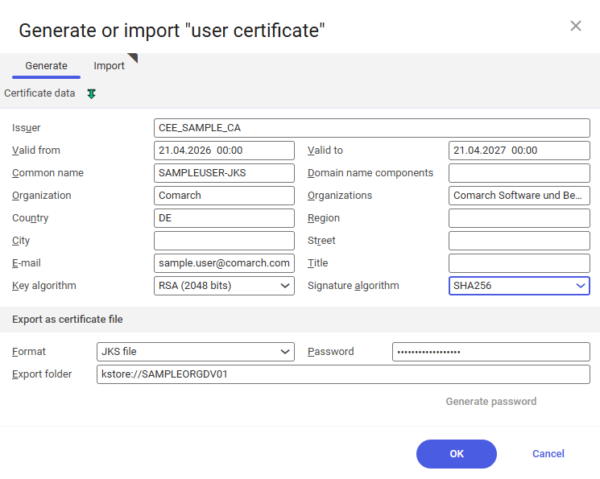
Example of certificate data for the Comarch e-Invoice converter user
Testing settings
Verification of data correctness is described in the sections KSeF System, Starting the ZT service or Checking ZT service configuration for failures.
Maintenance of code lists and special conversions
Maintenance of these definitions is described in the sections Data conversion and Object installation.
Creating filter definitions in Comarch ERP Enterprise
To create XML data in the interface for the Comarch e-Invoice converter, the following filter definitions are required:
- CUSTOMER_EINVOICE*
- SUPPLIER_EINVOICE*
(* is a constant suffix for formats; * is empty for ZUGFeRD 1.0)
The subfolder CEE_Filterdefinitions contains the necessary files to import these filter definitions. You must copy the necessary transformation files:
- CustomerInvoice*.xsl
- SupplierInvoice*.xsl
to the Knowledge Store, into the kstore://Database/eInvoice directory of the appropriate database. Next, in the einvoiceFilter*.xml file (where * is the constant suffix), you must replace the three partial URI paths kstore://CEEDATABASE/eRechnung/ with the target folder for the transformation files.
Then, using the Import data application in Comarch ERP Enterprise, you must import the customized einvoiceFilter.xml file for the business object com.cisag.sys.tools.bi.obj.FilterDefinition (filter FILTERDEFINITION) (with the options Readable without GUID, monolingual, and in normalized time format).
Alternatively, you can manually define export filters using the list of attributes required in export filters. Filters should be created in one language, in a normalized time format, and provided with the appropriate transformation file. The list of attributes can be found in the Documents subfolder in the FilterAttributes_to_eInvoice_formats.pdf file.
Even when importing filters, you should check the required attributes, as, for example, attributes for payment instructions regarding details, such as mandates, are missing.
Settings in Comarch ERP Enterprise
In Comarch ERP Enterprise, you must create appropriate text modules for texts that require qualification in ZUGFeRD (more information on this topic can be found in the CEE settings for ZUGFeRD formats chapter). If necessary, you should also create language-neutral unit codes.
For the ZUGFeRD invoice format to be available for selection for Comarch e-Invoice in Comarch ERP Enterprise for a business partner, the Comarch e-Invoice converter server must be successfully started at least once, as it sets this value once during startup.
Starting the Comarch e-Invoice converter server
In a DOS window with the path set to the installation directory, the Comarch e-Invoice converter server is started using the service_start.bat command. The method for starting the Comarch e-Invoice converter server as a service is described in the Service installation chapter.
Service installation
The files service.bat and prunsrv.exe are required for installation. To do this, you must copy these files to the installation directory from the DefaultSpecifications subfolder. Installation of the service for the Comarch e-Invoice converter server is performed via a DOS window. To do this, you must navigate to the installation directory and execute the command service install.
This configures the service under the name Comarch eRechnung Service and technically under the service name Comarch_eRechnung_Service.
The service name can be modified by providing a name suffix as an additional parameter, service install REAL, which defines the service Comarch_eRechnung_Service_ECHT.
The service is uninstalled by running the same command with the word remove instead of install.
If the service is to be configured or removed by another user (e.g., with administrator privileges), the specification /user xxx can be added to the end of the command, for example:
service install ECHT /user patternadmin service install ECHT /user domain\patternadmin
All further settings must be entered via the Windows application Control Panel -> Administrative Tools. In particular, you must check/set which user or account the service runs under.
The method for checking the Java version under which the service is executed is described in the chapter Setting the Java version for execution. Starting the service only makes sense if all settings are correct. Otherwise, the service or server will terminate with errors. To check the server functionality, it can also be started manually using the service_start.bat file in a DOS window from the installation directory.
A running service operates in the task manager under processes named prunsrv.
If a user wishes to activate multiple services for Comarch e-Invoice converter servers on one computer at the same time, they must set different ports for Java remote access (jmxremote). This is achieved by setting the port in the DOS window before executing the service install command using the environment variable EINVOICE_JMXPORT, for example using set EINVOICE_JMXPORT=7777 (without spaces before and after the = sign). Without this specification, the default value is 7901.
Logging
Logging level
The logging detail level is set in the log4j2.xml file in the level attribute within the <Logger> elements. After the introductory phase, the level can be reset to INFO, e.g., <Logger name=”com.comarch.einvoice” level=” INFO ” />. This level automatically includes all warnings and errors in the logging.
Logging communication with the mail server
Logging of communication with the mail server (also described in the Mail server chapter) takes place in a file named service-name-stdout.Date.log, e.g., comarch_billing_service-stdout.2016-05-11.log. If the commented-out elements from MailRollingFileApp are enabled in the log4j2.xml file by default, communication with the mail server will be logged in einvoice-service-mail-communication* files instead.
Logging for KSeF
Queries to the KSeF system are logged in the KSeF\Protocols subfolder.
The InvoiceUploadSessions.txt file in the KSeF\Work subfolder contains temporary information about sessions in which e-invoices are sent to the KSeF system. Ideally, this subfolder is empty.
The KsefWorkProcessingData.xml file in the Work folder also contains data for processing in the KSeF system. Specifically, it contains information about the last retrieved supplier invoice for each organization.
Information in the KsefWorkProcessingData.xml file must not be deleted, as it is used as the start time from which new supplier invoices are searched for.
If, for example, the <maxInvoicesSentTime> entry is empty or missing, 4:00 AM of the current day is used as the time.
Installing the control cockpit as a satellite
It is possible to install the control cockpit as a satellite, i.e., on a different computer.
To do this, you must copy the Comarch_eInvoice_Satellite_Installationfolder subfolder to the installation directory by executing the Create_Installationfolder_For_Satellite.bat batch file.
Then, you must copy/move this folder to the computer, e.g., a local PC, on which the satellite cockpit for the Comarch e-Invoice converter is to be run.
Only a portion of the objects is integrated in this subfolder, analogous to the information contained in the Object installation chapter. The following files are not needed:
- cmag-einvoice-service-app.properties file
- cmag-invoice-service.jar file
- eRg_CodeListen_Definitions.xml code list file
- eRg_Conversion.xml file with special conversions
- service.bat, service_start.bat and service_check_configuration.bat batch files
- prunsrv.exe program
The cmag-einvoice-service.jar file must under no circumstances be included. This prevents accidental changes to settings on the wrong computer. Settings are always maintained locally and must be maintained on the computer (in the installation directory) on which the Comarch e-Invoice converter acts as a server.
In such a case, the server address is not http://localhost:8080, but the address and port of the server on which the Comarch e-Invoice converter is installed, for example http://eRechnungserver4ZT.com:8080. More information can be found in the Control cockpit chapter.
Currently, there is no automatic updater for satellite cockpits.
Tips
Tasks remain active after pausing or controlled shutdown of the server
If tasks remain active for too long during these operations, you should try to find in the log files which supplier invoice or email the problem concerns and the reason why the tasks cannot be completed. The only remaining option is a hard termination of the server, i.e., terminating the prunsrv.exe process for the user under which the service is running. A customer invoice will have the status Processable. In such a case, the customer invoice will be reprocessed after a restart. For a supplier invoice, there should not yet be an entry in the interface. If the email data has already been moved from the inbox folder, it must be moved back to the inbox folder.
Starting the ZT service or checking ZT service configuration fails
Usually, when the service_check_configuration.bat file is called, the check result is written to the …\installation directory\logs\configCheck.txt file (more information can be found in the KSeF System chapter). If this output file has not been created, the error must be determined based on the log. A known problem is that the data server port is already in use elsewhere or ZT is already running. In such a case, the log contains the lines:
java.net.BindException: Address already in use: bind java.lang.IllegalStateException: Tomcat connector in failed state
In that case, you must terminate the application that is using the port or define a different port (i.e., adjust the Server address: port in the cockpit properties accordingly).
Changing values in code lists
If values are changed or entered in the code lists (more information on this topic can be found in the Code lists chapter), it is not necessary to restart the Comarch e-Invoice converter server. You just need to make the given customer invoice available for processing again in your application or, in the case of supplier invoices, move the email data from the folder with incorrect emails back to the inbox folder for the e-invoice.
Opening a file via a pop-up in the control cockpit fails
If an error appears in the form: Failed to open file …. Error message: A device connected to the system does not work, it means that the file extension is not associated with any application. In such a case, for example, you should right-click the PDF file in Windows File Explorer, select [Open with], and then select the default program. Next, by selecting the program, i.e., the appropriate .exe file, it is determined that files with the selected file type will always be opened using the program indicated here.
Starting the service fails
Starting the service results in the error: The service Comarch e-invoice Service xxx on computer xy could not be started. Error 216:0xd8 and one of the following pieces of information is found in Event Viewer in the Windows Logs / System section:
- Comarch eInvoice Service TEST service was terminated with the following service-specific error: Incorrect function.
- The version of Comarch e-invoice Service T8888 is incompatible with the version of the Windows system being used. You must open the computer system information to check whether the x86 (32-bit) or x64 (64-bit) version of the program is required, and then contact the software publisher.
The reason for this may be the use of an incorrect version of the prunsrv.exe file. Therefore, prunsrv.exe should be replaced with another version of this file from the DefaultSpecifications subfolder. These versions must then be renamed to prunsrv.exe.
Using pseudoitems
If pseudoitems are used for item numbers, the item description of the invoice item is combined with the pseudoitem. There are two possibilities:
- If the pseudoitem is correct, i.e., it exists in the Comarch ERP Enterprise system as a purchase item, the pseudoitem can no longer be changed in the line item.
- If the pseudoitem is incorrect, the imported e-invoice must be accepted using the correction application in the data exchange protocol entry. In this case, the appropriate purchase item must be entered.
New features in connection with Comarch ERP Enterprise version 6.2:
- A pseudoitem can be provided, but it is not required. In this situation, pseudoitems are entered as defaults for the item.
- If the user does not want to use pseudoitems in a supplier invoice, it is recommended not to provide any pseudoitems.
Explanation of error messages during XRechnung and ZUGFeRD 2.1 validation
In error messages for validation checks for the new ZUGFeRD 2.1 or XRechnung formats, instructions appear in parentheses or square brackets that begin with BT (Business Term) or BG (Business Group) and are supplemented by a hyphen and a number. These are references to which missing or incorrect data in the invoice the message refers. The BR (Business Rule) information refers to the associated business rules.
Explanations for these BT, BG, and BR specifications in German are contained in the XRechnung specification (and also apply to ZUGFeRD 2.1). Version 2.3.1 of XRechnung dated 03.02.2022 is available for download at https://xeinkauf.de/app/uploads/2023/02/231-XRechnung-2023-02-03.pdf.
For future versions, information regarding XRechnung can be obtained from the IT Standards Coordination Office download page, available at https://xeinkauf.de/xrechnung/#kontext.
Special features/limitations
Different payment recipient
A different payment recipient is used when specifying a supplier (partner or GLN) for the interface, but it is not included in the invoice data for its processing, as Comarch ERP Enterprise does not support a different payment recipient.
ZUGFeRD document types
Debit notes and invoices issued to oneself (more information on this topic can be found in the Default settings chapter) are not supported. If such invoice types are possible in Comarch ERP Enterprise, they must not be sent as a ZUGFeRD e-invoice.
Special Fattura PA logic
Dati Bollo tax stamp
The tax stamp is inserted into the FatturaPA invoice document by the Comarch e-Invoice converter when the minimum amount specified in the Default settings chapter is exceeded. If the customer’s registered office is not located in Italy, the tax stamp will not be inserted.
Project codes CodiceCUP and CodiceCIG
For invoices to public administration, CUP and CIG project codes can be entered as header text in the invoice (i.e., in the sales order). The header texts must start with CIG= or CUP= and contain the associated code. These texts are transferred only if an external document number is provided.
Project codes Causale
For tax exemptions in FatturaPA, there are … Lettera di … references. Using the CAUSALE project code, the associated text can be entered as header text in the invoice (i.e., in the sales order). The text must start with CAUSALE= and contain the Causale information (max. 200 characters). Only one causale text is supported; others will be ignored.
Tax exemption declarations are indicated only via invoice line items to which the Natura N3.5 reference has been assigned. Further information on this topic can be found within the Tax declaration of intent (dichiarazioni d’intento) implementation specification. More information can be found in the FatturaPA chapter.
Postal codes/region for clients outside Italy
If the registered office is not located in Italy, its postal code is padded with leading zeros to 5 characters or, if necessary, truncated from the right. If the postal code contains characters other than digits after removing spaces and hyphens, the postal code is set to 00000; otherwise, the validation would fail.
If the region does not consist of two capital letters, this information is omitted.
Client’s CodiceFiscale
If the information about the client’s local tax number in their accounting view does not contain any data, the information from the supplementaryTaxIdentificationNumber field is used.
In principle, only Italian clients have a CodiceFiscale. All clients outside of Italy have a VAT number and should not have a CodiceFiscale. For this reason, the following adjustment has been implemented in the Comarch e-Invoice converter:
- If the client’s registered office is not located in Italy, but the client does not have a VAT number, and the tax number for <CodiceFiscale> does not have digits in the first two characters, the tax number will be transferred to the VAT number <IdFiscaleIVA>.
- If the client’s registered office is not located in Italy, and the client has a VAT number, the <CodiceFiscale> indicator will be removed.
Setting item components
Bundle item components receive the same item number as the corresponding bundle item. Furthermore, the tax data of the associated bundle item is adopted in the bundle item components for tax purposes (this is missing in the Comarch ERP Enterprise system).
Unit price
Unit prices are used in Comarch ERP Enterprise with greater precision, and are subsequently printed on the invoice after rounding. This leads to a situation where the formula:
Quantity * Unit price = Line item price
has a deviation greater than the 0.01 euro tolerance. In such cases, the unit price is recalculated and accepted if the change falls within the specified rounding difference, and the formula is correct within the tolerance. Especially in the case of items with pricing dimensions, the unit price is calculated based on the unit if necessary.
Additional sending of PDF invoices by email
Thanks to the Additional sending of PDF invoices by email function, the PDF invoice file that was created in Comarch ERP Enterprise can additionally be sent by email. The email is sent to the recipient according to the document template. In this way, additional information regarding the invoice can be sent to the client. The fact that this is only additional information should be specified in the specifications for the subject and text in the document template. The subject is supplemented with the name of the SDI transfer file.
Additional sending will only be executed if the following conditions are met:
- this option is enabled,
- the e-invoice has been successfully created,
- for the partner who is a customer, the value in the final processing type is set in accordance with the setting in the e-invoice converter tool.
If the user does not want to send an additional shipment to the customer, and the Convert to Comarch e-Invoice option is enabled, for the partner, the Output to Windows directory should be set as the final processing type.
Ignoring Natura items when calculating the minimum Bollo amount
Items with a 0 tax rate are used to determine the Minimum Bollo amount. In order for exceptions, such as the further calculation of the tax stamp (MARCA DA BOLLO), to have these items excluded from the minimum amount calculation, the BOLLO_ prefix must be added to the Natura specification. This requires your own, associated Comarch ERP Enterprise control keys.
In the FatturaPA XML file, the BOLLO_ prefix is then removed from the Natura specification and becomes, for example, N1 or N2.1 again.
Preparation of information regarding CodiceFiscale and postal code
Information regarding the tax number and postal code must comply with the requirements for Italy and often do not meet these requirements in the case of foreign partners. In this way, it is supplemented by adding the letter X until the value reaches 11 characters if the country of these partners is other than Italy. For postal codes of these partners, leading zeros are added, or the value is set to 00000 if the adjustment is not possible.
Special features of the ZUGFeRD 2.1 format
Different invoice recipients
In the ZUGFeRD 2.1 format, different invoice recipients are no longer supported, as they are no longer included in the EN 16931/Factur-X standard.
E-invoices marked with test mode
The test mode indicator in e-invoice XML files is no longer supported.
Special features of the XRechnung format
Special features analogous to ZUGFeRD 2.1
The same special features apply as for the ZUGFeRD 2.1 format. More information on this topic can be found in the Special features ZUGFeRD 2.1 chapter.
Additional mandatory information
The Comarch e-Invoice converter supports standard XRechnung formats (also known as XRechnung). XRechnung formats (1.2.2, 2.0.0, and subsequent versions) are identical to the ZUGFeRD 2.1 standard in terms of content and structure.
However, XRechnung requires mandatory information, in particular:
- routing identification number,
- supplier contact data – more information on this topic can be found in the ZUGFeRD and XRechnung – Contact with the supplier chapter,
- email address of the sales organization – from XRechnung version 3.0.1, it can be defined via the supplier contact data – more information can be found in the ZUGFeRD and XRechnung chapter.
All other mandatory data are usually provided or verified during audits.
The routing number is entered in the Comarch ERP Enterprise system in the Partners application for the Customer view in the field of the same name. Since this field in Comarch ERP Enterprise is limited to 30 characters and routing identifiers can be longer, the remaining part of the number must be entered in the Number in the Commercial Register field in the Iscrizione REA section. Both parts are then combined after removing spaces (at the beginning and at the end).
Output format
The Comarch e-Invoice converter allows the creation of an XRechnung invoice as a hybrid document, i.e., as a PDF invoice with an embedded XRechnung XML file.
Details regarding discounts
The XRechnung format allows for recording information about cash discounts in the form of a formula in the payment terms description. In the ZUGFeRD specification, this special feature of the XRechnung format is described as follows:
Information regarding the granting of a discount or the calculation of interest for late payment must be transmitted in the Payment terms (BT-20) element, each on a separate line, in the following way: in the first segment, indicate ‘SKONTO’ or ‘VERZUG’, in the second ‘TAGE=n’, in the third ‘PROZENT=n’, with each segment enclosed in ‘#’ characters. Percentages must be written using a dot and two decimal places. If the amount on which calculations are made is not based on BT-115, i.e., the amount due, but only on a part of that amount, the base value for calculating the discount or interest for late payment should be provided as a fourth segment ‘BASISBETRAG=n’ with the Amount type.
Format instruction, e.g.:
#SKONTO#TAGE=14#PROZENT=2.25#
#SKONTO#TAGE=14#PROZENT=2.25#BASISBETRAG=357.93#
Further descriptions can be found on the website https://xeinkauf.de/xrechnung/. Descriptions of current XRechnung versions are available in the Versions and packages section.
If the user wants to transmit information about a cash discount in this form, they must use payment terms containing only such a format description. The text is not processed, i.e., variable base amounts cannot be used.
Special features of KSeF invoices
After successfully creating an invoice file in XML format for KSeF, it must be sent to the KSeF system. You must also download the invoice acknowledgment of receipt (UPO). These additional tasks are carried out by appropriate processes (more information can be found in the KSeF Users chapter) and by using connection data to the KSeF system (more information can be found in the KSeF Users chapter).
Special features for supplier invoices
Authorization check by supplier invoice type (from version 6.2)
Using the appropriate conversion, the supplier invoice type can be defined. If the value determined in this way corresponds to the supplier invoice type applicable in the Comarch system, it is entered into the interface and can be used for authorization checks.
Handling additional formats for supplier invoice e-invoices
In addition to the formats listed in the General chapter, other formats for supplier invoice e-invoices that are similar to them are also supported.
The data contained in these formats, which are used by the Comarch e-Invoice converter, must be located in the same places as in the similar e-invoice format assigned to them. This applies, for example, to extended ZUGFeRD formats assigned to the corresponding EN16931 formats. The same applies to the ZUGFeRD 2.0.1 format, which is similar to ZUGFeRD 2.1.
Upon detection of these additional formats and successful validation, they are processed as e-invoices in the assigned similar format (listed in the General chapter).
Such formats can be identified in the Comarch ERP Enterprise system based on the information in the Additional format information field in the supplier invoice e-invoices application.
KSeF functionality for supplier invoices
The KsefWorkProcessingData.xml file contains, among other things, data regarding the receipt of supplier invoices. When searching for supplier invoices in the KSeF system, it is necessary to specify a time interval. The value provided in the <maxInvoicesSentTime> tag is used as the start time. If this entry is missing or empty, 4:00 AM of the current day is assumed as the default time.
Optional features
Preferred P.O. Box instead of street in the buyer’s address (disabled by default)
In transformations for ZUGFeRD and XRechnung, it is possible to display a P.O. Box (with the text P.O. Box before the number) in the buyer’s address instead of the street, if a P.O. Box is available.
You can activate this option by replacing poBox_inactive with poBox in the appropriate XSL file, preferably in a copy of it. It is assumed that if a P.O. Box is provided, the partner is also assigned the appropriate postal code for the P.O. Box.
If the user wants to apply this solution only for selected customers, they should create separate printer document templates for them with their own filter definition and transformation.
Notes regarding settings in Comarch ERP Enterprise
Invoice format with approval control
In the Customizing application settings for Comarch e-Invoice, there is a field named Invoice format with verification before sharing. For invoice formats specified in this field (separated by commas), invoices that are to be created as e-invoices receive the status In process. Such invoices must then be approved for processing via the appropriate action on the customer invoice or in a list-type application for customer invoices.
Creating KSeF customer invoices
Invoices for which KSeF customer invoices are to be created must be issued using the Comarch ERP Enterprise for Poland APP in the sales order. This enables further processing of credit/correction invoices.