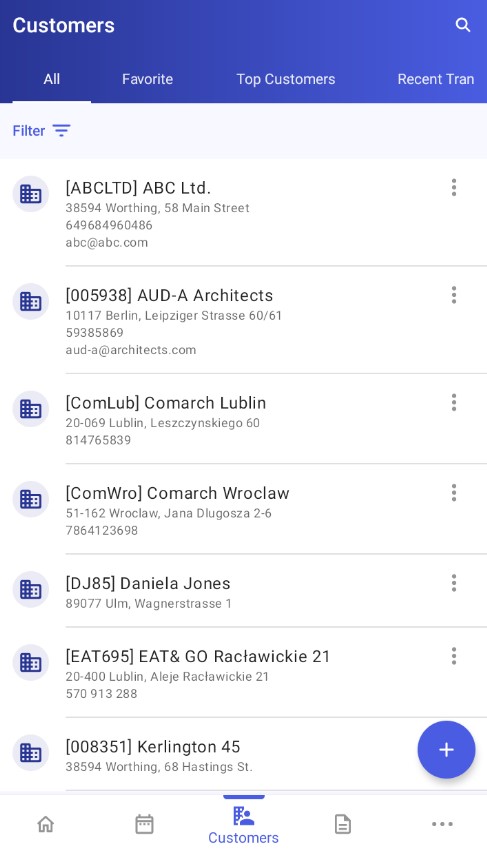
When you tap the Customers icon, a window is displayed that contains the following tabs:
- All
- Favorite
- Top Customers
- Recent Transactions
- Contact Persons
For more information, see the Tabs article.
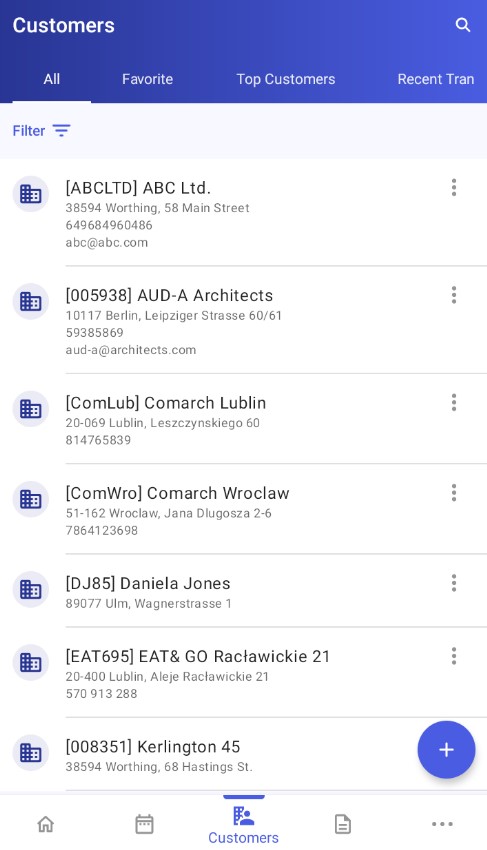
On each tab, you can:
- Search for customers by using the search bar. To display the bar, tap the
 icon in the top right corner of the screen.
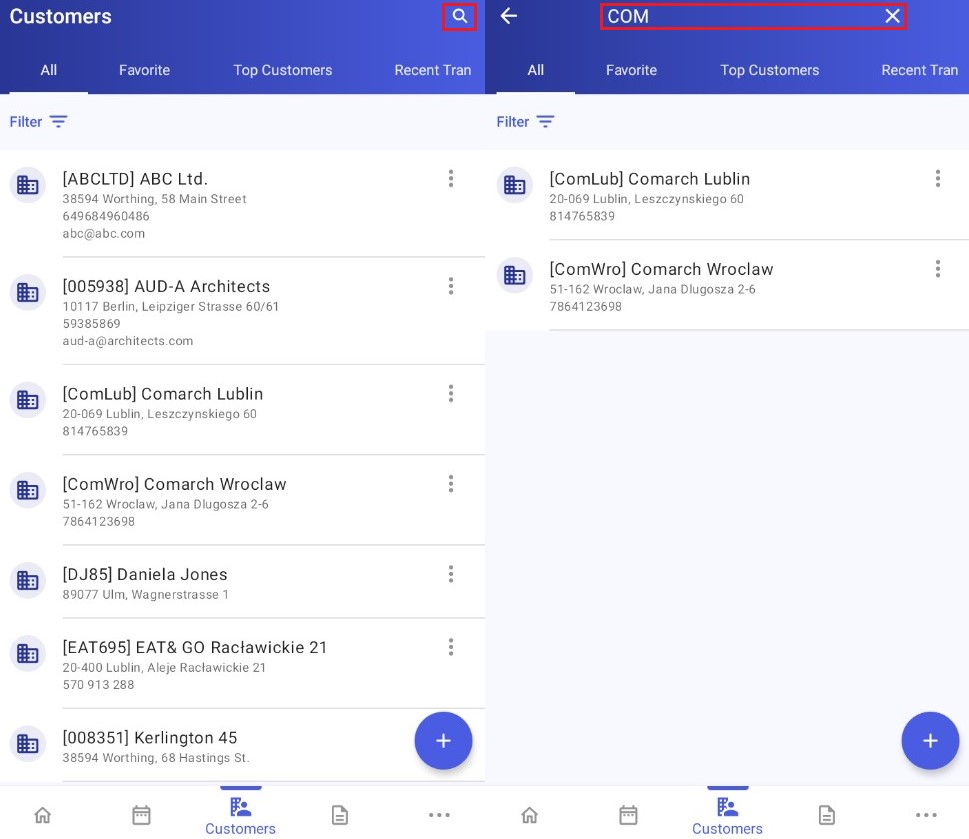
- Sort the customer list by name or code, either ascending or descending. To do so, tap the
 icon in the top left corner:
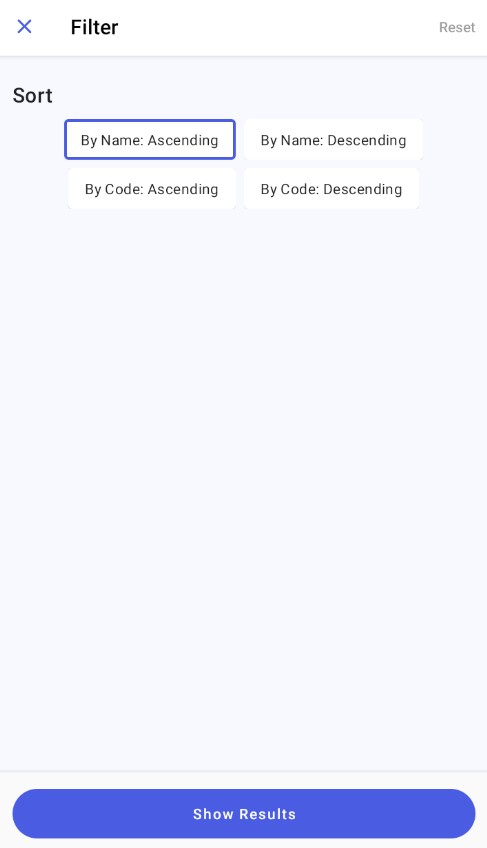
- Add a new customer in the application. To do so, tap the
 icon in the bottom right corner. For more details, see the article Adding a new customer.
 - Complete additional actions related to a specific customer by selecting the
 button

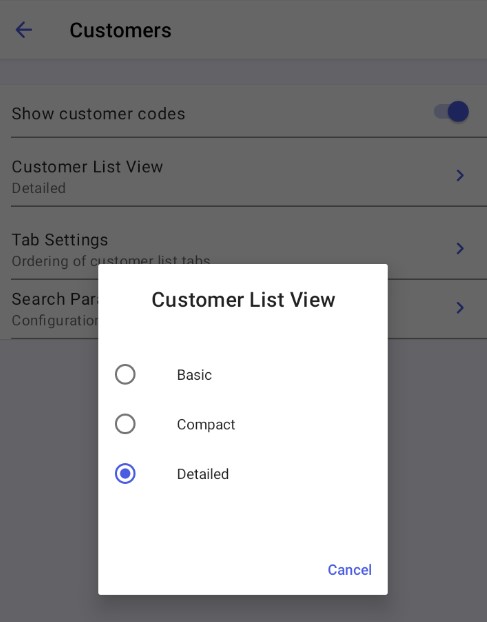
Customer list view settings
You can adjust the view of the customer list in More → Settings → Customer List Settings → Customer List View. For more details, see the article Application Parameters section.
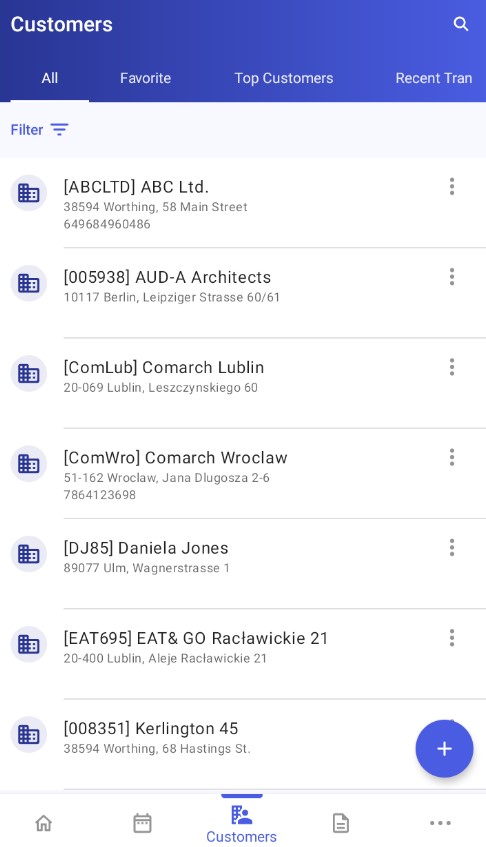
The basic view of the customer list contains:
- Customer icon
- Customer code and name
- Customer address
- TIN
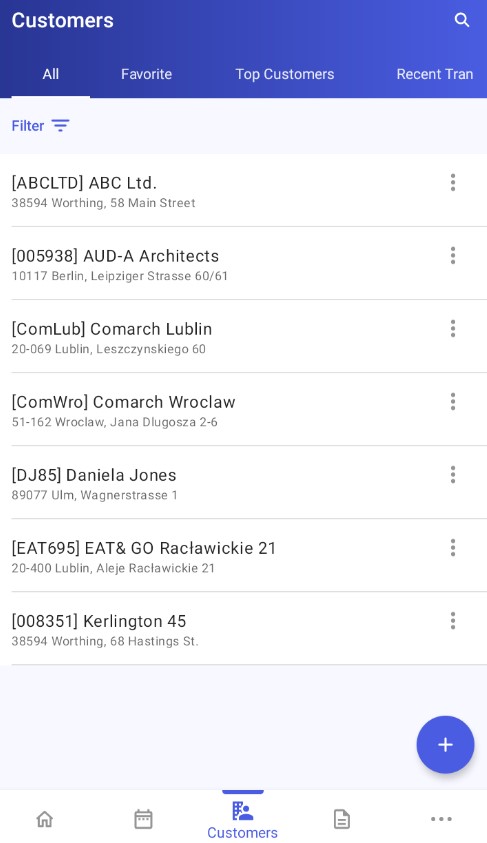
The compact view of the customer list contains:
- Customer code and name
- Customer address
The detailed view of the customer list contains:
- Customer icon
- Customer code and name
- Address
- TIN
- Phone
- E-mail address